




What “Device Descriptor Request Failed” means
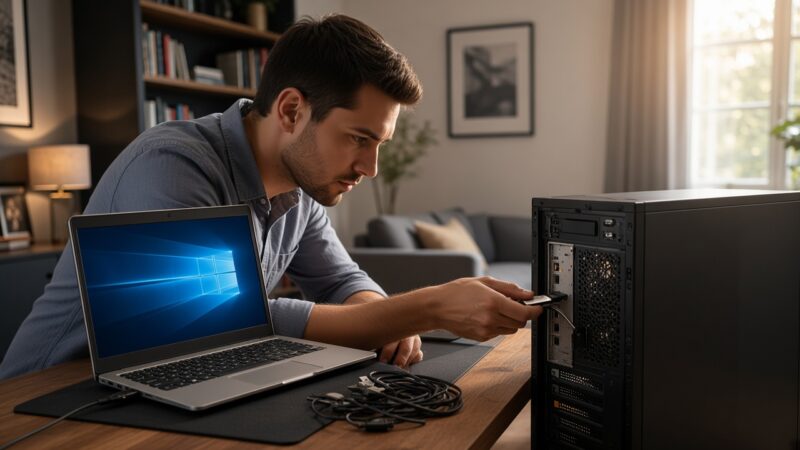
You plug in a flash drive, phone, controller, or other USB device and Windows shows “USB device not recognized.” In Device Manager, under Universal Serial Bus controllers, there’s an entry with a yellow warning sign called Unknown USB Device (Device Descriptor Request Failed).
Table of Contents
Table of Contents
- What “Device Descriptor Request Failed” means
- Table of Contents
- How to confirm the error
- Fixes for Device Descriptor Request Failed on Windows 11
- 1. Unplug, wait, and connect directly to the PC
- 2. Try another cable and another port
- 3. Test the device on another computer
- 4. Restart, or fully power off and drain the PC
- 5. Uninstall the Unknown USB Device and scan for hardware changes
- 6. Remove old hidden copies of the device
- 7. Turn off USB selective suspend
- 8. Stop Windows from turning off the USB root hubs
- 9. Give the device more power
- 10. Update chipset and USB drivers, and BIOS/UEFI
- 11. Repair system files
- When it may be hardware
- FAQ
- Sources
When a USB device is connected, Windows first asks it to identify itself: what kind of device it is and which driver it needs. That identification is the device descriptor. Device Descriptor Request Failed on Windows 11 means the device didn’t answer that first request correctly. Because Windows never learned what the device is, it can’t load the right driver.
This usually comes down to one of these:
- A bad or charge-only cable, or a loose or dirty port.
- The device not getting enough power, especially through an unpowered hub or front-panel port.
- USB power-saving settings putting the port or device to sleep at the wrong moment.
- A stale or damaged driver entry from an earlier connection.
- A fault in the device itself.
This is a different problem from a device that Windows recognizes but can’t start. If your device shows its real name with Code 10, that’s a driver or device startup error, not a descriptor failure.
How to confirm the error
- Right-click Start and select Device Manager.
- Expand Universal Serial Bus controllers. If you don’t see a warning icon there, check Other devices as well.
- Right-click the entry with the yellow warning sign and select Properties.
- Read the Device status box on the General tab.
For this error, the device is usually named Unknown USB Device (Device Descriptor Request Failed) and the status shows Code 43. Microsoft describes Code 43 as “Windows has stopped this device because it has reported problems,” meaning one of the drivers controlling the device told Windows the device failed.
Write down the exact name and code. Microsoft’s USB troubleshooting page tells you to use that code to choose your next steps.
Fixes for Device Descriptor Request Failed on Windows 11
1. Unplug, wait, and connect directly to the PC
- Unplug the device.
- Wait about 10 seconds.
- Plug it straight into a port on the PC. Skip hubs, docks, monitor USB ports, and extension cables for now.
- On a desktop, use a rear port on the motherboard rather than the front panel.
Microsoft’s USB-C guidance makes the same point: connect devices directly to your PC and not through an external hub or dock when you’re troubleshooting.
2. Try another cable and another port
Cables fail more often than devices do, and some USB cables only carry power, not data. A charge-only cable lets a phone charge while Windows sees a broken device.
- Swap to a cable you know transfers data, ideally the one that came with the device.
- Try every port on the PC, including both USB-A and USB-C if the device supports both.
- Look inside the port for lint or damage. Clean it gently with compressed air (Microsoft suggests compressed air for dirty USB-C ports).
3. Test the device on another computer
This one test saves the most time:
- Fails on another PC too: the device or its cable is the problem. Skip to the hardware section below.
- Works on another PC: your PC’s ports, drivers, or settings are the problem. Continue with the next fix.
4. Restart, or fully power off and drain the PC
USB controllers can get stuck in a bad state. A normal shutdown in Windows 11 with Fast Startup on doesn’t fully reset everything, so:
- Unplug all USB devices except your keyboard and mouse.
- Choose Start > Power > Restart (Restart does a full restart).
- If that doesn’t help, shut down, then unplug the power cable from the desktop (or the charger from the laptop) and wait about 30 seconds before turning it back on.
- Reconnect the problem device on its own.
HP’s guide recommends the same approach: remove all USB devices, shut down, wait 30 seconds, restart, and reconnect devices one at a time.
5. Uninstall the Unknown USB Device and scan for hardware changes
This is Microsoft’s recommended fix for Code 43. It removes the failed entry so Windows can try again from scratch.
- With the device plugged in, open Device Manager.
- Under Universal Serial Bus controllers, right-click Unknown USB Device (Device Descriptor Request Failed) and select Uninstall device. Confirm.
- Unplug the device.
- In Device Manager, select Action > Scan for hardware changes.
- Plug the device back in and give Windows a moment to detect it.
6. Remove old hidden copies of the device
Windows keeps entries for USB devices that aren’t connected anymore. A stale entry for the same device can sometimes get in the way.
- In Device Manager, select View > Show hidden devices.
- Expand Universal Serial Bus controllers and the category your device belongs to (for example Disk drives for a flash drive, or Portable Devices for a phone).
- Greyed-out entries are devices that aren’t connected right now. Right-click any greyed-out entry for the problem device and select Uninstall device.
- Restart, then plug the device in again.
Only remove greyed-out entries you recognize. Leave other system devices alone.
7. Turn off USB selective suspend
USB selective suspend lets Windows put idle USB ports into a low-power state. If a device doesn’t wake properly, enumeration can fail. HP lists turning this off as a fix for devices that aren’t recognized.
- Open Control Panel > Hardware and Sound > Power Options.
- Next to your active plan, select Change plan settings > Change advanced power settings.
- Expand USB settings > USB selective suspend setting.
- Set it to Disabled (on laptops, set both On battery and Plugged in). Select OK.
On some laptops, the USB settings section doesn’t appear in this window. If it’s not there, skip to the next fix.
8. Stop Windows from turning off the USB root hubs
- In Device Manager, expand Universal Serial Bus controllers.
- Right-click USB Root Hub (or USB Root Hub (USB 3.0)) and select Properties.
- If there’s a Power Management tab, clear Allow the computer to turn off this device to save power and select OK.
- Repeat for each USB Root Hub and Generic USB Hub entry.
- Restart and reconnect the device.
9. Give the device more power
Devices that draw more power, such as external hard drives, some webcams, and audio interfaces, can fail to identify themselves when they don’t get enough. Microsoft lists low battery, power going to other connected devices, and a device needing more than the PC can supply as reasons a USB device might not get enough power.
- On a laptop, plug in the charger. Don’t troubleshoot on battery.
- Disconnect other USB devices you aren’t using.
- If the device has its own power adapter, use it.
- If you need a hub, use a powered hub (one with its own power adapter), not an unpowered one.
10. Update chipset and USB drivers, and BIOS/UEFI
If several different devices fail on your PC, but they work elsewhere, the USB controller driver or firmware is the next thing to check.
- Open Settings > Windows Update > Check for updates, then also check Advanced options > Optional updates for driver updates.
- Visit your PC or motherboard maker’s support page for your exact model and install the latest chipset driver.
- Check the same page for a BIOS/UEFI update and its release notes. Follow the maker’s instructions exactly, and keep the PC plugged in during the update.
11. Repair system files
Corrupted system files can break USB driver loading. Run Microsoft’s recommended repair in an elevated Command Prompt:
DISM.exe /Online /Cleanup-image /Restorehealth
sfc /scannow
Run DISM first and let it finish, then run SFC. Leave the window open until it reaches 100%, then restart.
When it may be hardware
Treat the device or cable as faulty if:
- It fails on two or more computers with different cables.
- It shows the error immediately on every port, even after the uninstall-and-rescan step.
- The connector is loose, wobbles, or only works at a certain angle.
- The device gets unusually hot, or it was dropped or got wet before the error started.
Treat a PC port as faulty if one port gives the error with every device while the other ports work fine. You can keep using the working ports. A front-panel port that fails while the rear ports work often points to the front-panel cable inside the case.
If a flash drive or external drive holds files you need, stop repeatedly plugging it in. Repeated attempts on failing storage can make recovery harder. Contact the manufacturer or a data recovery service instead.
For other device-related problems on Windows 11, see our guides to Bluetooth missing from Device Manager and a printer that shows offline but is connected. If a USB keyboard is the device that won’t work, our keyboard not working guide has more steps.
Device descriptor request failed Windows 11: where to start
If Device Manager shows device descriptor request failed Windows 11 for a device, test the cable, the port, and another PC first (Fixes 1 to 3). Then continue with the power, driver, and system file fixes.
Unknown USB device code 43
An unknown USB device code 43 entry means Windows stopped the device because it reported problems. Uninstalling the entry and scanning for hardware changes (Fix 5) is the step Microsoft recommends for Code 43.
USB device not recognized Windows 11
If you get a USB device not recognized Windows 11 message, begin by connecting the device directly to the PC with a data cable, as described in Fixes 1 and 2.
USB selective suspend Windows 11
To rule out power saving, turn off USB selective suspend Windows 11 in Power Options as shown in Fix 7, and check the USB root hub settings in Fix 8.
FAQ
What is Code 43 on a USB device?
Microsoft defines Code 43 as “Windows has stopped this device because it has reported problems.” With an Unknown USB Device, it means the device failed while Windows was trying to identify it.
Is Device Descriptor Request Failed a driver problem or a hardware problem?
It can be either, so test the device on another PC first. If it fails everywhere, it’s the device or cable. If it works elsewhere, focus on your PC’s ports, power settings, and drivers.
Can a USB hub cause this error?
Yes. Unpowered hubs, docks, and monitor USB ports can fail to supply enough power or a clean connection. Connect the device directly to the PC to rule this out.
Will I lose data on my flash drive if I uninstall the Unknown USB Device?
No. Uninstalling the device in Device Manager only removes Windows’ driver entry. It doesn’t touch the files on the drive.
Should I disable USB selective suspend permanently?
You can leave it off if it fixes the problem. The trade-off is slightly higher power use, mainly on laptops. If the error doesn’t come back after a cable or port change, you can turn it back on.
Sources
- Microsoft Support: Error codes in Device Manager in Windows (Code 43)
- Microsoft Support: Fix USB-C problems in Windows (“USB device not recognized,” power, and hub guidance)
- Microsoft Learn: Device Manager error messages (Code 43 = CM_PROB_FAILED_POST_START)
- HP: How to Fix USB Device Not Recognized
- Microsoft Support: Use the System File Checker tool to repair missing or corrupted system files



2 comments