




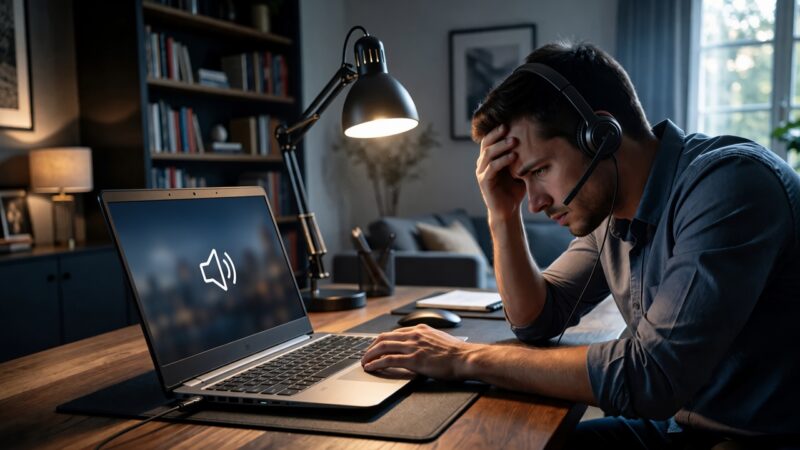
USB headset Code 10 on Windows 11 usually starts like this: your headset worked fine, then Windows 11 installed an update and now there’s no sound, the mic is dead, or the volume slider is stuck at zero. In Device Manager, the headset (or its audio entry) shows a yellow warning and the status reads “This device cannot start. (Code 10)”.
Table of Contents
A USB headset Code 10 error on Windows 11 is a real, documented problem. Microsoft lists it as a known issue that started with the September 8, 2026 Windows security update (KB5124008) and affects some USB Audio Class 1.0 devices. Part of it was fixed in an out-of-band update, but as of Microsoft’s latest notes the USB headset Code 10 and no-sound symptoms are not fully fixed yet.
This guide shows you how to confirm you’re hitting this specific issue, what Microsoft has and hasn’t fixed, and what to try, in order from safest to most involved.
Why USB headset Code 10 shows up on Windows 11
Microsoft tracks this on its Windows release health dashboard under “USB audio devices might fail to start or produce no sound.” On the Windows 11 version 25H2, 24H2 and 26H2 pages, the status is Mitigated, not Resolved (last updated by Microsoft on September 29, 2026).
According to Microsoft, after installing the September 8, 2026 security update, affected USB Audio Class 1.0 devices may show one or more of these symptoms:
- Device Manager shows “This device cannot start (Code 10).”
- No audio output.
- Volume controls don’t respond or stay at zero.
- Sound settings are unresponsive or unavailable.
- Some devices work in normal stereo but fail in multichannel modes such as 8-channel or 3D audio.
Microsoft states: “This issue is limited to USB Audio Class 1.0 devices.”
Which update fixes what
| Update | Date | What it does for this issue |
|---|---|---|
| KB5124008 (OS Builds 26200.9445 / 26100.9445) | Sept 8, 2026 | The originating security update Microsoft lists for 25H2 and 24H2. |
| KB5129195 (OS Builds 26200.9457 / 26100.9457), out-of-band | Sept 14, 2026 | Fixes only the multichannel symptom (devices that work in stereo but fail in 8-channel or 3D audio modes). Microsoft says the other audio symptoms are not resolved by it. |
| KB5127648 (OS Builds 26300.9711 / 26200.9711 / 26100.9711) | Oct 13, 2026 | Still lists the USB audio issue as a known issue, “partially resolved.” |
| KB5127936 (OS Builds 26300.9818 / 26200.9818), optional preview | Oct 28, 2026 | Still lists “USB Audio Class 1.0 devices with error Code 10 or no output” as a known issue. Resolution: “Microsoft is working on a resolution and will update this documentation when more information is available.” |
So if your headset shows Code 10 or gives no sound at all, installing KB5129195 or a later update won’t necessarily fix it. If your headset works in stereo but fails in surround/3D modes, those updates are aimed at your problem.
Microsoft hasn’t published a consumer workaround for the Code 10 symptom. For businesses, it says: “IT administrators who need an immediate workaround for the symptoms not addressed yet by the OOB update should contact Microsoft Support for Business for assistance.”
Before you start: press Win + R, type
winver, and press Enter. Note your Windows 11 version (for example 25H2 or 26H2) and the OS Build number. You’ll need these to compare against the table above and to check Microsoft’s page later.
How to confirm it’s this issue
Code 10 is a generic “device failed to start” error, so it’s worth spending two minutes confirming you’re dealing with the USB Audio Class 1.0 problem and not a faulty cable or a separate driver issue.
1. Find the error in Device Manager
- Right-click Start and select Device Manager.
- Expand Sound, video and game controllers (also check Audio inputs and outputs).
- Look for your headset with a yellow warning icon. Right-click it and choose Properties.
- On the General tab, check Device status. If it says “This device cannot start. (Code 10)”, continue.
2. Check which driver the device uses (usbaudio.sys vs usbaudio2.sys)
Windows has two built-in USB audio class drivers:
- usbaudio.sys: the USB Audio 1.0 class driver.
- usbaudio2.sys: the USB Audio 2.0 class driver. Microsoft’s documentation says it shows up in Device Manager as “USB Audio Class 2 Device” (or the product name if the device provides one).
To check yours:
- In the device’s Properties, open the Driver tab.
- Select Driver Details.
- Look at the driver files listed.
| What you see | What it means |
|---|---|
usbaudio.sys |
The device uses the Windows USB Audio 1.0 class driver. That’s the group Microsoft says is affected. |
usbaudio2.sys |
The device uses the USB Audio 2.0 class driver. Microsoft says the known issue is limited to Audio Class 1.0 devices, so look for another cause. |
| A file named after the headset maker | The headset uses its own driver. Microsoft’s known issue is about Audio Class 1.0 devices, so check the manufacturer’s support page and the general fixes below. |
3. Double-check with Compatible IDs (optional)
- In Properties, open the Details tab.
- In the Property dropdown, choose Compatible Ids.
USB audio devices report USB\Class_01. According to Microsoft’s USB Audio 2.0 driver documentation, the 2.0 driver claims IDs that end in &Prot_20 (for example USB\Class_01&SubClass_01&Prot_20). If your audio entry shows USB\Class_01... without Prot_20, it’s handled as a USB Audio 1.0 device.
Which headsets tend to be USB Audio Class 1.0?
USB Audio Class 1.0 is the older of the two standards. It’s common on plug-and-play USB headsets, USB speakerphones, and simple USB sound adapters that work without installing any software. Don’t rely on the box or the brand, though. The driver check above is the only reliable way to know.
Fixes, from safest to most involved
Work through these in order. Retest your headset after each one.
Fix 1: Restart (a full restart, not just sleep)
Choose Start > Power > Restart. If an update is waiting for a restart, it won’t be fully applied until you do this. After the restart, check Device Manager again.
Fix 2: Unplug, then try a different USB port
- Unplug the headset.
- Plug it straight into a different USB port on the PC, not a hub, dock, or front-panel extension.
- On a desktop, try a rear port on the motherboard.
If the headset works on another port or another PC, the cable and headset are probably fine.
Fix 3: Check the default playback and recording device
Sometimes the headset is working, but Windows is sending sound to the wrong device.
- Open Settings > System > Sound.
- Under Output, select your USB headset.
- Under Input, select the headset microphone.
- Make sure the volume isn’t muted or at zero.
For deeper output troubleshooting, see our Windows 11 No Sound Fix guide. If only the mic is affected, also check microphone privacy permissions in our Windows 11 Microphone Not Working guide.
Fix 4: Switch the headset to 2-channel stereo and turn off spatial/3D audio
Microsoft notes that some affected devices fail only in multichannel modes, and that “some customers have reported that they’re able to restore audio in these cases by switching to 2-channel mode.” This mainly helps if the headset gives sound sometimes, or fails only when surround or virtual 7.1 is on.
- Press Win + R, type
mmsys.cpl, and press Enter to open the classic Sound panel. - On the Playback tab, select your USB headset and click Configure. If it offers Stereo, choose it and finish the wizard.
- Select the headset again and click Properties.
- On the Advanced tab, under Default Format, choose a 2 channel option (for example “2 channel, 16 bit, 48000 Hz”) and click Apply.
- On the Spatial sound tab (if present), set it to Off.
- If the headset came with software that turns on virtual 7.1 or “3D” sound, turn that off too.
If your device shows Code 10 and Windows can’t start it at all, you may not be able to open these settings. That’s the part Microsoft hasn’t fixed yet.
Fix 5: Install the latest Windows updates
Microsoft’s September 14, 2026 out-of-band update KB5129195 fixed the multichannel (8-channel/3D) failure on Windows 11 24H2 and 25H2, and later cumulative updates include it.
- Go to Settings > Windows Update and select Check for updates.
- Install what’s offered and restart.
- Run
winveragain and confirm your build is the same as or newer than the ones in the table above.
Note: Microsoft says Windows 11 version 24H2 Home and Pro reached end of updates on October 13, 2026. If you’re on 24H2 Home or Pro, Microsoft recommends moving to 25H2 or 26H2 to keep getting fixes, including any future fix for this audio issue.
Fix 6: Update or reinstall the device driver
Microsoft’s standard advice for USB headset Code 10 is to update the driver. That won’t fix a bug in Windows itself, but it rules out a corrupted driver install.
- In Device Manager, right-click the headset and choose Update driver > Search automatically for drivers.
- If that doesn’t help, right-click the headset, choose Uninstall device, then unplug the headset.
- Restart the PC, plug the headset back in, and let Windows reinstall it. You can also use Action > Scan for hardware changes in Device Manager.
- If the headset maker offers its own Windows driver or software, check their support site.
Fix 7: Use a different audio path while you wait
If the headset is your main mic for work calls, the most practical short-term fix is often to avoid the affected device type:
- Use the headset’s 3.5 mm jack (if it has one) in the PC’s audio port.
- Use a Bluetooth headset or the laptop’s built-in mic and speakers.
- Use a USB headset or adapter that loads usbaudio2.sys or its manufacturer’s own driver, since Microsoft says the issue is limited to USB Audio Class 1.0 devices.
Fix 8 (optional, with trade-offs): Uninstall the latest update
Microsoft does document how to remove an update:
- Open Settings > Windows Update > Update history.
- Under Related settings, select Uninstall updates.
- Select the update and choose Uninstall.
Read these trade-offs before you do it:
- You lose security fixes. Microsoft’s own guidance says: “Before uninstalling a security update, make sure you understand the risks.” The update behind this issue (KB5124008) is a security update.
- Later updates are cumulative. For example, Microsoft says the October 13, 2026 update (KB5127648) includes the improvements from KB5124008, KB5129195 and KB5124010. Removing only the newest update may not take you back to a pre-September state, and Microsoft hasn’t said that uninstalling restores USB Audio 1.0 devices.
- Windows will reinstall it. Windows Update will offer the update again. You’d have to pause updates, which extends the time your PC goes without security patches.
- Some updates can’t be removed. Microsoft notes that “some updates cannot be uninstalled.”
For most people, Fixes 1–7 plus waiting for Microsoft’s fix is the better trade than going without security updates. If you manage PCs for a business, Microsoft points IT admins to Microsoft Support for Business for an interim workaround.
If the headset shows as Unknown USB Device rather than Code 10, see device descriptor request failed on Windows 11.
When to stop, and when it may be hardware
Stop troubleshooting Windows and suspect the headset or cable if:
- The headset also fails on another PC or on a PC that didn’t get the September 2026 update.
- Device Manager shows the device appearing and disappearing, or Windows shows “USB device not recognized,” instead of Code 10.
- The cable is damaged, or the headset works only when you hold the cable at a certain angle.
- The driver check shows usbaudio2.sys or a manufacturer driver, and the headset still fails on every port.
If the headset works on another PC and your PC shows USB headset Code 10 with usbaudio.sys, the headset is likely fine. You’re probably waiting on Microsoft’s fix, so check back on the release health page.
Where to start
If you have USB headset Code 10 Windows 11 symptoms, first confirm they match the known issue described above, then follow the steps in order from safest to most involved.
USB headset not working after Windows 11 update
If your USB headset not working after Windows 11 update matches the Code 10 or no-sound symptoms above, check Microsoft’s known-issue notes before you change drivers.
FAQ
Did KB5129195 fix USB headset Code 10?
No, not according to Microsoft. KB5129195 (September 14, 2026) fixes USB Audio Class 1.0 devices that failed in 8-channel or 3D audio modes. Microsoft’s KB5129195 notes say “there are other audio symptoms not resolved in this OOB update,” and USB headset Code 10 is one of them.
Is the USB Audio Class 1.0 Code 10 issue fixed now?
Not as of Microsoft’s latest documentation that we checked. The release health dashboard lists it as Mitigated, and the October 28, 2026 KB5127936 notes still list it as a known issue with “Microsoft is working on a resolution.” Check the release health links in the Sources section for the latest status.
My headset uses usbaudio2.sys. Am I affected?
Microsoft says the issue is “limited to USB Audio Class 1.0 devices,” and usbaudio2.sys is the USB Audio 2.0 driver. If you see USB headset Code 10 on a USB Audio 2.0 device, it’s likely a different problem. Use the reinstall and port steps above, and check the headset maker’s support page.
Does this affect Windows 10 too?
Microsoft’s known-issue entry lists Windows 10 versions 22H2 and 21H2 (plus some Enterprise LTSC editions) and several Windows Server versions as affected platforms, along with Windows 11 23H2, 24H2, 25H2, 26H1 and 26H2.
Should I avoid upgrading to Windows 11 26H2 because of this?
Microsoft lists the same USB Audio Class 1.0 issue on the 26H2 release health page, also marked Mitigated. Upgrading doesn’t fix it, and Microsoft doesn’t say it makes it worse. If a USB Audio 1.0 headset is essential for your work, check that it works after each update, and keep a backup audio device handy.
Sources
- Microsoft Learn: Windows 11, version 25H2 known issues and notifications
- Microsoft Learn: Windows 11, version 24H2 known issues and notifications
- Microsoft Learn: Windows 11, version 26H2 known issues and notifications
- Microsoft Support: September 14, 2026—KB5129195 (OS Builds 26200.9457 and 26100.9457) Out-of-band
- Microsoft Support: October 13, 2026—KB5127648 (OS Builds 26300.9711, 26200.9711 and 26100.9711)
- Microsoft Support: October 28, 2026—KB5127936 (OS Builds 26300.9818 and 26200.9818) Preview
- Microsoft Learn: USB Audio 2.0 Drivers
- Microsoft Support: Error codes in Device Manager in Windows
- Microsoft Support: How to uninstall a Windows Update



2 comments