


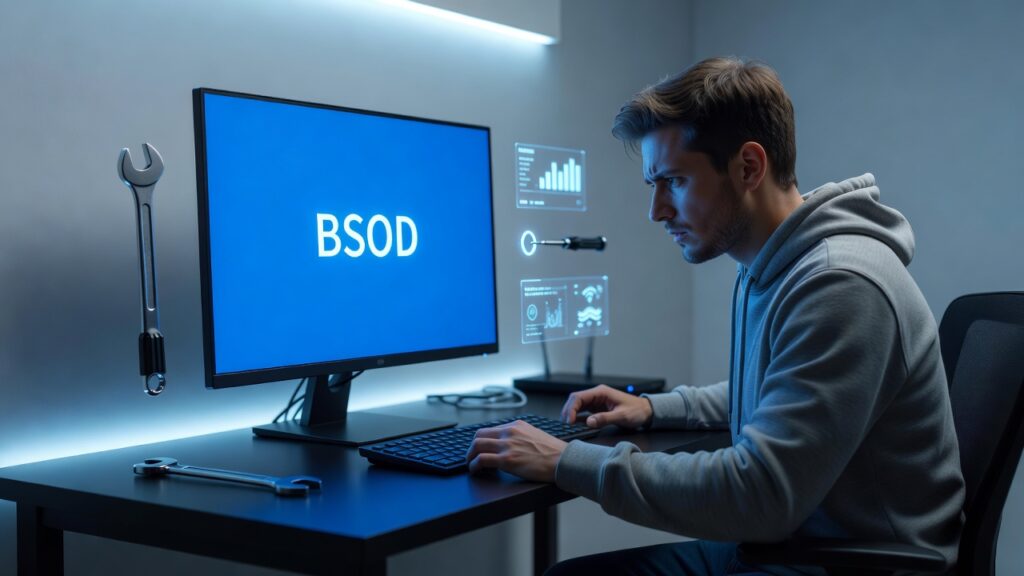
A Blue Screen of Death (BSOD) is one of the most frustrating problems Windows users can experience. If your PC suddenly crashes with a blue screen, don’t panic—it doesn’t always mean your hardware is damaged.
This guide covers the best Windows 11 blue screen fix methods, whether the problem started after an update, during startup, or randomly while using your computer.
If you’re experiencing other Windows issues alongside BSOD errors, you may also want to read our guide on Windows 11 High CPU Usage Fix and Printer Offline But Connected Windows 11 before continuing. These problems can sometimes be related to corrupted drivers or faulty Windows updates.
Table of Contents
What Causes a Blue Screen in Windows 11?
Several issues can trigger a BSOD, including:
- Corrupted Windows updates
- Faulty device drivers
- Damaged system files
- Defective RAM
- Failing SSD or HDD
- Overheating CPU or GPU
- Driver conflicts
- Malware infections
Finding the cause is the first step toward applying the correct solution.
Windows 11 blue screen fix – Best Solutions That Actually Work
Follow these solutions in order.
Restart Your Computer
Sometimes a temporary Windows error causes a one-time crash.
- Hold the Power button until the PC turns off.
- Wait 30 seconds.
- Turn it back on.
If the blue screen doesn’t return, it was likely a temporary issue.
Windows 11 blue screen fix after update
If you’re searching for a windows 11 blue screen fix after update, start by uninstalling the latest Windows update, updating your graphics and chipset drivers, and restarting your PC. In many cases, these steps resolve the problem without needing to reinstall Windows.
Many users experience BSODs immediately after installing a Windows Update.
Try these steps:
- Open Settings > Windows Update > Update History.
- Select Uninstall Updates.
- Remove the most recent quality update.
- Restart your computer.
If the issue disappears, pause Windows Updates until Microsoft releases a fix.
Windows 11 blue screen on startup fix
A windows 11 blue screen on startup fix usually involves running Startup Repair, booting into Safe Mode, or restoring Windows to an earlier restore point. These methods repair boot-related problems without affecting your personal files.
If Windows crashes before reaching the desktop:
- Turn your PC on and off three times.
- Windows will launch Automatic Repair.
- Select:
Troubleshoot
→ Advanced Options
→ Startup Repair
Allow Windows to diagnose and repair startup problems automatically.
If Startup Repair fails, boot into Safe Mode.
Boot into Safe Mode
Safe Mode loads only essential Windows drivers.
- Open Recovery Options.
- Choose:
Troubleshoot
→ Advanced Options
→ Startup Settings
→ Restart
- Press 4 or F4.
If the blue screen disappears in Safe Mode, a third-party driver or software is likely responsible.
Update Device Drivers
Old or corrupted drivers commonly trigger BSODs.
Open:
Device Manager
Look for devices with a yellow warning icon.
Update:
- Graphics driver
- Chipset driver
- Network adapter
- Storage controller
Restart after installing updated drivers.
Run Windows Memory Diagnostic
Faulty RAM frequently causes blue screen crashes.
- Press Windows + R
- Type:
mdsched.exe
- Restart and scan.
If Windows detects memory problems, replacing the RAM may solve the issue.
Run System File Checker
Corrupted Windows files can also trigger BSODs.
Open Command Prompt (Administrator) and run:
sfc /scannow
Wait until the scan finishes.
Restart afterward.
Repair Windows Image
If SFC cannot repair everything, run:
DISM /Online /Cleanup-Image /RestoreHealth
This repairs Windows installation files using Windows Update.
Scan Your Drive
Bad sectors on your SSD or HDD can produce blue screen errors.
Run:
chkdsk C: /f /r
Restart your PC when prompted.
The scan may take some time depending on your storage size.
Windows 11 keeps blue screening after update
If windows 11 keeps blue screening after update, the issue is often caused by incompatible drivers, corrupted system files, or outdated BIOS firmware. Installing the latest drivers usually resolves recurring crashes.
If BSODs continue after every Windows Update:
- Roll back the latest update.
- Update motherboard drivers.
- Update BIOS if recommended by your PC manufacturer.
- Disconnect unnecessary USB devices.
- Disable any overclocking.
Many post-update BSODs are caused by outdated hardware drivers rather than Windows itself.
Check for Overheating
Monitor your temperatures using trusted hardware monitoring software.
Typical safe temperatures:
- CPU: below 85°C
- GPU: below 85°C
Clean dust from your PC and ensure fans are operating correctly.
Scan for Malware
Some malware modifies critical Windows files.
Run:
- Microsoft Defender Full Scan
- Offline Scan
Remove any detected threats before continuing.
Windows 11 bsod fix without reinstalling
A windows 11 bsod fix without reinstalling is possible in most situations. Startup Repair, System Restore, SFC, DISM, Safe Mode, and driver rollbacks solve the majority of BSOD problems without erasing your files.
Before reinstalling Windows, try these recovery options:
- System Restore
- Startup Repair
- SFC Scan
- DISM Repair
- CHKDSK
- Driver Rollback
- Safe Mode troubleshooting
Most BSOD problems can be fixed without performing a clean installation.
When Should You Reinstall Windows?
Reinstall Windows only if:
- All repair methods fail.
- System files remain corrupted.
- Windows won’t boot even after recovery.
- Multiple BSOD errors occur every day.
Be sure to back up your files before reinstalling.
Frequently Asked Questions
How to fix blue screen error Windows 11
Many users ask how to fix blue screen error windows 11 without losing data. The safest approach is to run SFC, DISM, CHKDSK, and Windows Memory Diagnostic before considering a clean installation.
Start by updating drivers, running SFC and DISM scans, checking your RAM, uninstalling recent updates, and repairing your drive. These steps solve most BSOD issues.
Why does Windows 11 keep blue screening after an update?
The update may have installed incompatible drivers or corrupted system files. Rolling back the update and installing the latest drivers usually fixes the issue.
Can faulty RAM cause BSOD?
Yes. Faulty or unstable RAM is one of the most common reasons Windows displays blue screen errors.
Can I fix Windows 11 BSOD without reinstalling?
Yes. Most users can repair Windows using Safe Mode, Startup Repair, System Restore, SFC, DISM, and driver updates without reinstalling Windows.
Following this windows 11 blue screen fix guide should resolve most crashes. Whether you need a windows 11 blue screen fix after update, a windows 11 blue screen on startup fix, or a windows 11 bsod fix without reinstalling, the methods above are the safest solutions to restore a stable Windows installation.
Final Thoughts
Experiencing a blue screen can be alarming, but most problems are fixable with the right troubleshooting steps. Following this Windows 11 blue screen fix guide can help resolve crashes caused by updates, drivers, damaged system files, or hardware issues.
If your PC still crashes after completing every solution, the problem may be related to failing hardware such as RAM, storage, or the motherboard.
Internal Links that might help.
Add these naturally in the article:
- Windows 11 High CPU Usage Fix – Ultimate Guide to Reduce CPU Usage Fast (2026)
- Printer Offline But Connected Windows 11? Easy & Powerful Fixes That Actually Work (2026)
- Windows 11 Bluetooth Device Missing from Device Manager – Easy Fixes (2026)
- Windows 11 Microphone Not Working? Easy & Powerful Fixes (2026)
External Sourced Links
Use these authoritative Microsoft resources: