


If your Windows 11 search bar not working issue is preventing you from finding apps, files, or settings, you are not alone. Many users report that the search feature freezes, becomes blank, or refuses to type after a Windows update. Fortunately, there are several proven methods to fix the problem quickly.
If the search bar windows 11 not working issue appears after an update or system change, it is usually caused by broken Windows Search services or corrupted indexing files.
The good news is that most search bar issues can be fixed in just a few minutes using the methods below.
This guide covers the most effective ways to fix the Windows 11 search bar problem permanently.
Table of Contents
Why Is the Windows 11 Search Bar Not Working?
There are several possible causes behind this issue:
- Corrupted Windows Search service
- Broken search indexing
- Windows update bugs
- Damaged system files
- Explorer.exe glitches
- SearchHost.exe crashes
- Background service conflicts
Sometimes the search bar may:
- Not open at all
- Freeze while typing
- Stay blank
- Crash instantly
- Stop responding after an update
One of the most common reasons for the search bar windows 11 not working problem is a failure in the SearchHost or Windows Explorer process, which controls the taskbar search functionality.
Common Signs of Windows 11 Search Bar Problems
When the Windows 11 search bar is not working, users may notice several different symptoms:
- The search box stays blank
- Typing does not work
- Search results never load
- Search crashes instantly
- Start menu search becomes unresponsive
- Windows Search consumes high CPU usage
These problems are usually linked to indexing corruption, broken Windows services, or update-related bugs.
How to Fix Windows 11 Search Bar Not Working
1. Restart Windows Explorer
One of the fastest fixes is restarting Windows Explorer.
Steps:
- Press Ctrl + Shift + Esc
- Open Task Manager
- Find Windows Explorer
- Right-click it
- Select Restart
This refreshes the taskbar, Start menu, and search components.
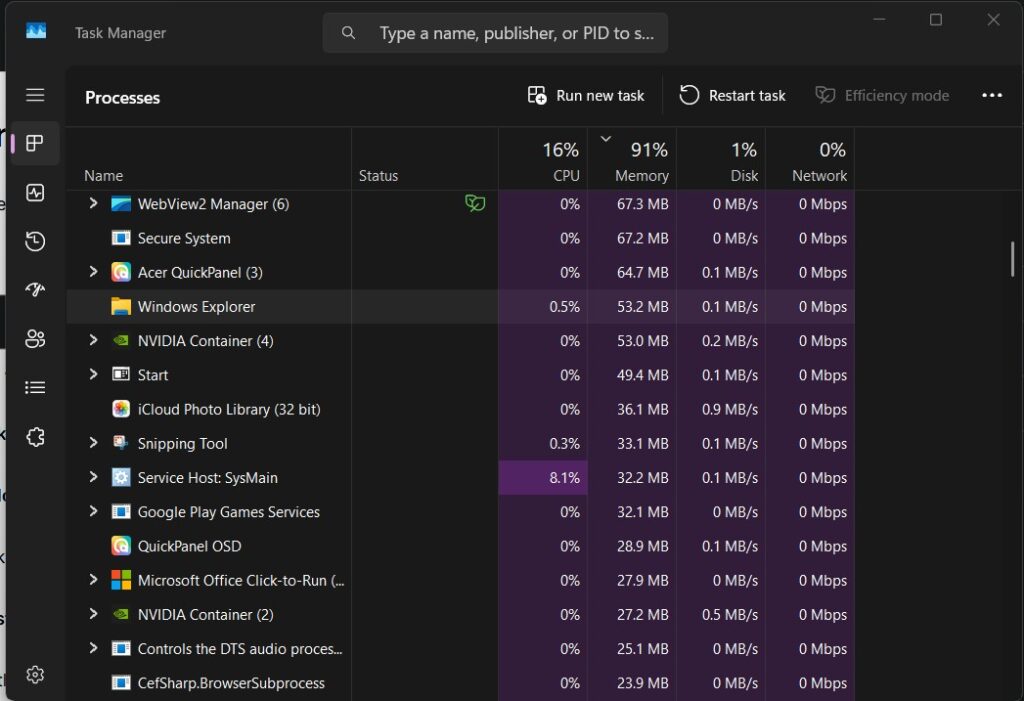
Restarting Windows Explorer often resolves the search bar windows 11 not working issue because it refreshes the taskbar, Start menu, and search components at the same time.
2. Restart the Windows Search Service
If the search service stops running, the search bar may stop working completely.
Steps:
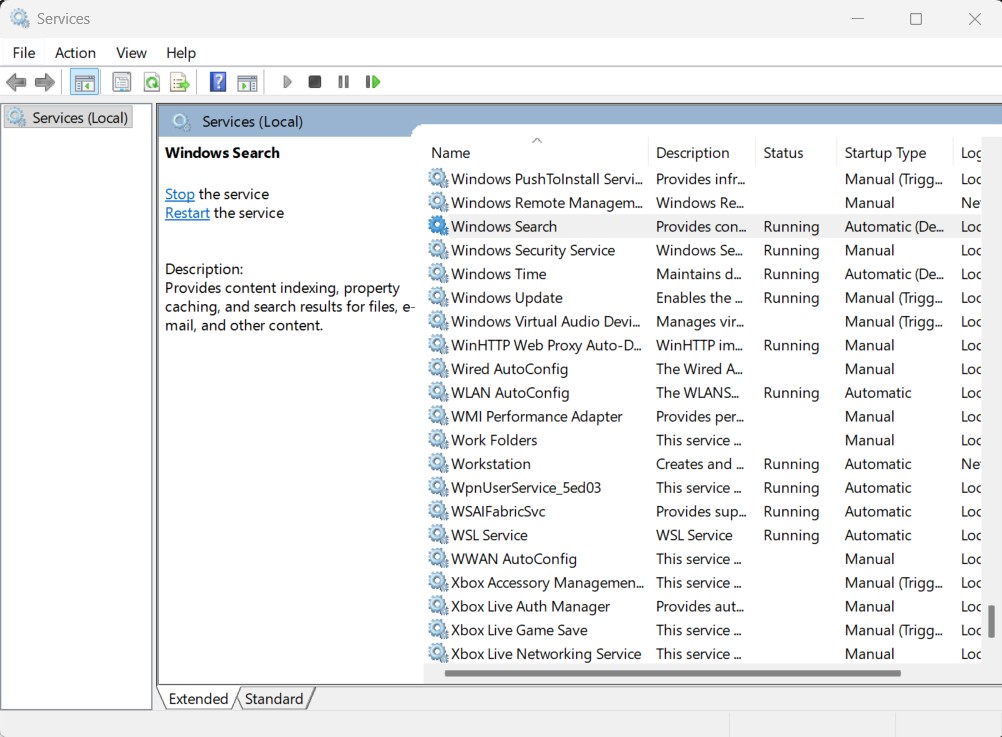
- Press Windows + R
- Type:
services.msc- Find Windows Search
- Right-click it
- Click Restart
After restarting the service, test the search bar again.
3. Run the Search and Indexing Troubleshooter
Windows 11 includes a built-in troubleshooter specifically for search issues.
Steps:
- Open Settings
- Go to System > Troubleshoot
- Select Other troubleshooters
- Find Search and Indexing
- Click Run
Windows will automatically detect and repair common search-related problems.
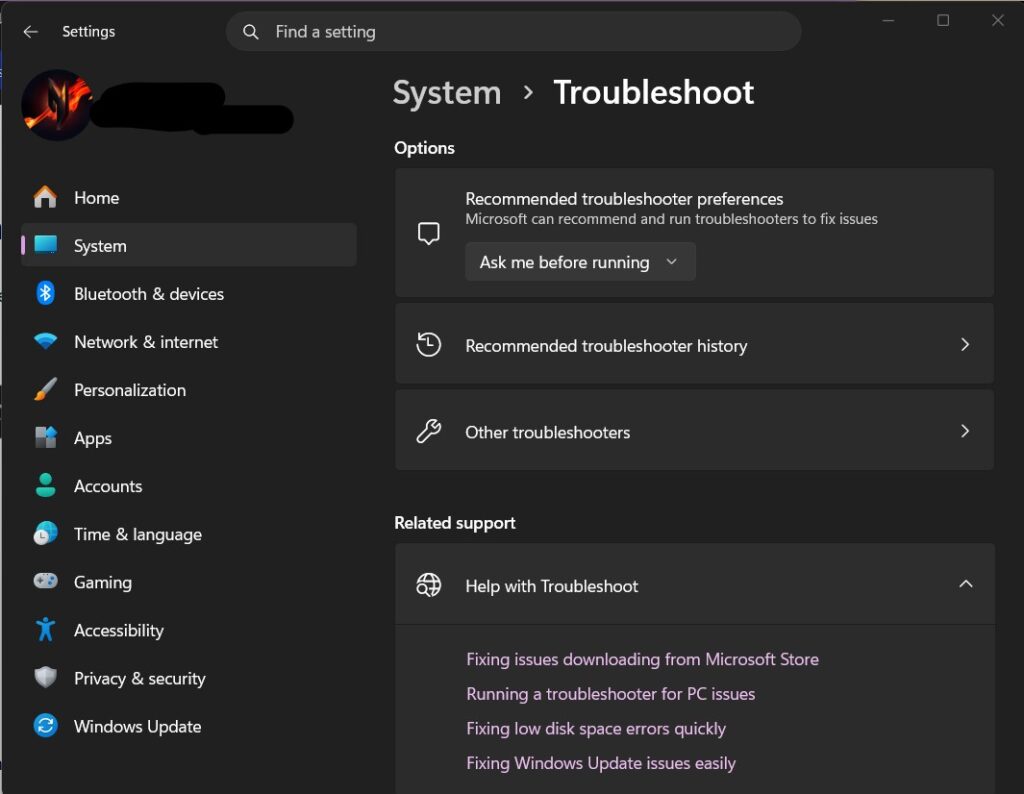
If the search bar not working Windows 11 issue started after an update, the built-in troubleshooter can often repair damaged search settings automatically.
4. Rebuild the Search Index
Corrupted indexing is one of the most common reasons why the Windows 11 search bar stops working.
Steps:
- Open Control Panel
- Search for Indexing Options
- Click Advanced
- Under Troubleshooting, click Rebuild
The rebuilding process may take several minutes depending on your files.
5. Restart SearchHost.exe
The Windows search interface depends heavily on the SearchHost process.
Steps:
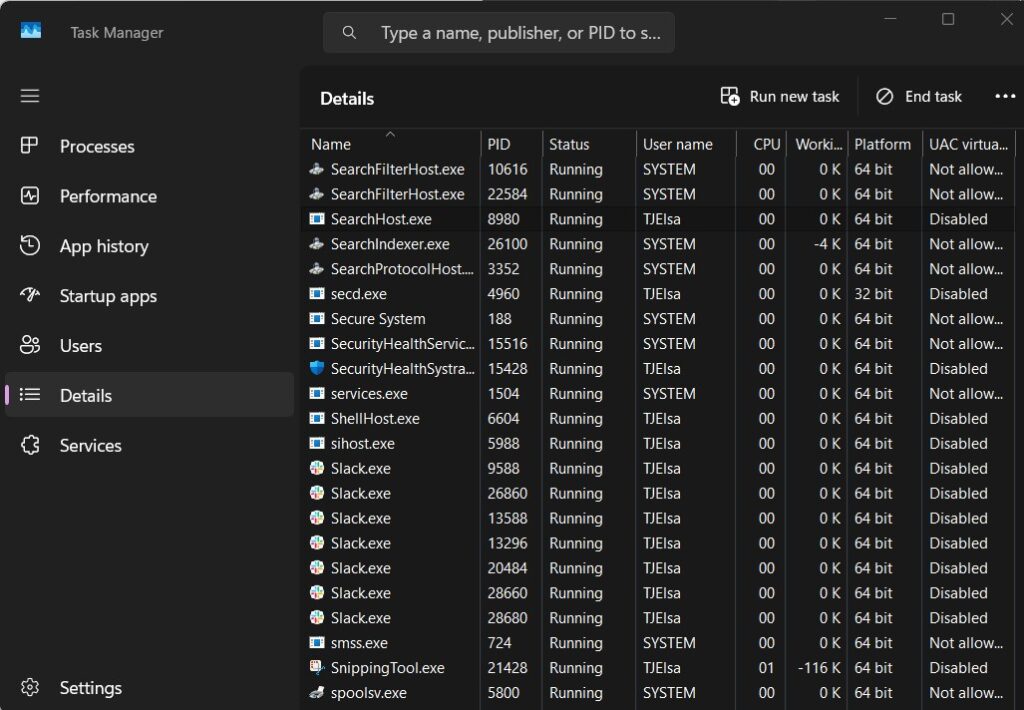
- Open Task Manager
- Go to the Details tab
- Find:
- SearchHost.exe
- SearchIndexer.exe
- Right-click each process
- Select End Task
Windows will automatically restart them.
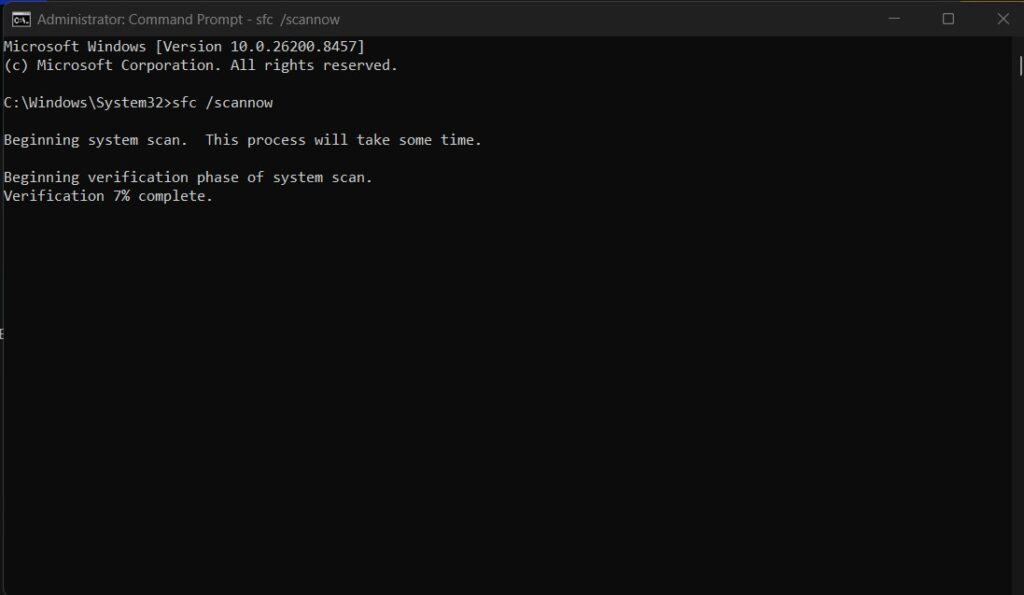
6. Run SFC and DISM Scans
Corrupted system files can break the Windows search functionality.
Run SFC Scan:
Open Command Prompt as Administrator and type:
sfc /scannowWait until the scan finishes.
Run DISM Commands:
DISM /Online /Cleanup-Image /RestoreHealthRestart your computer after both scans are complete.
7. Install the Latest Windows Updates
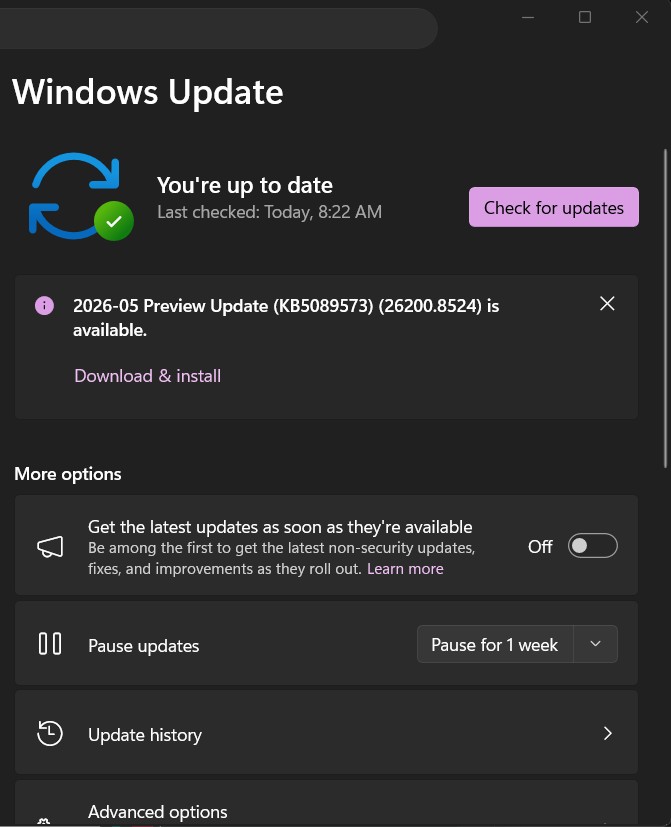
Microsoft frequently releases fixes for Windows Search bugs.
Steps:
- Open Settings
- Go to Windows Update
- Click Check for updates
- Install all pending updates
Restart your PC afterward.
8. Remove Corrupted Temporary Files
Temporary system cache can sometimes interfere with search functionality.
Steps:
- Press Windows + R
- Type:
temp- Delete temporary files
- Repeat using:
%temp%Restart your computer afterward.
9. Create a New User Account
Sometimes the issue only affects a corrupted Windows profile.
Steps:
- Open Settings
- Go to Accounts > Family & other users
- Select Add account
- Create a new local account
- Sign in and test the search bar
10. Reset Windows Search Using PowerShell
If nothing works, resetting Windows Search can completely restore functionality.
Steps:
Open PowerShell as Administrator and run:
Get-AppxPackage Microsoft.Windows.Search | Reset-AppxPackageRestart your PC after the process finishes.
Additional Tips to Prevent Search Bar Problems
To reduce future search bar issues:
- Keep Windows updated
- Avoid aggressive registry cleaners
- Do not disable core Windows services
- Use reliable antivirus software
- Restart your PC regularly
Common Symptoms of Windows Search Problems
You may experience:
- Search bar opens but stays blank
- Cannot type in search bar
- Search crashes immediately
- Search results never load
- Search becomes extremely slow
- Search bar disappears after update
These symptoms are usually connected to indexing or SearchHost service problems.
Internal Links
You may also find these guides useful:
- Windows 11 Update Stuck at 0 Percent Fix
- Windows 11 WiFi Connected But No Internet Fix
- Windows 11 Black Screen After Login
- Bluetooth Device Missing From Device Manager Windows 11
- DNS Server Not Responding Windows 11
External Authority Sources
- Microsoft Windows Search Troubleshooter
https://support.microsoft.com/windows - Windows Search Indexing Guide
https://learn.microsoft.com/windows
FAQ Section
Why is my Windows 11 search bar not working?
The Windows 11 search bar usually stops working because of corrupted indexing, broken search services, or Windows update bugs.
How do I restart the Windows search bar?
You can restart the search bar by restarting Windows Explorer and the Windows Search service from Task Manager and Services.
Why can’t I type in the Windows 11 search bar?
This usually happens due to SearchHost.exe crashes, indexing corruption, or temporary system glitches.
Does rebuilding the search index fix the issue?
Yes. Rebuilding the search index often fixes blank or frozen search results.
Can Windows updates break the search bar?
Yes. Some cumulative Windows updates temporarily break search functionality or Start menu features.
Many users experiencing windows search bar not working Windows 11 problems can fix the issue simply by restarting Windows Explorer or rebuilding the search index. If the issue continues, advanced solutions like SFC scans and PowerShell resets usually restore normal functionality.
If you are still wondering how to fix search bar not working Windows 11, follow the methods above carefully from simplest to most advanced until the search feature works again.
Final Thoughts
The Windows 11 search bar not working issue is usually caused by indexing problems, broken search services, or corrupted system files. Fortunately, most cases can be fixed using the troubleshooting methods above.
Start with simple fixes like restarting Windows Explorer and rebuilding the search index before moving to advanced repairs like SFC or PowerShell resets.
Following these steps carefully should restore your Windows 11 search functionality quickly and permanently.
Most users experiencing search bar windows 11 not working can resolve the issue by following the troubleshooting steps above, starting from simple restarts to advanced system repair tools.