





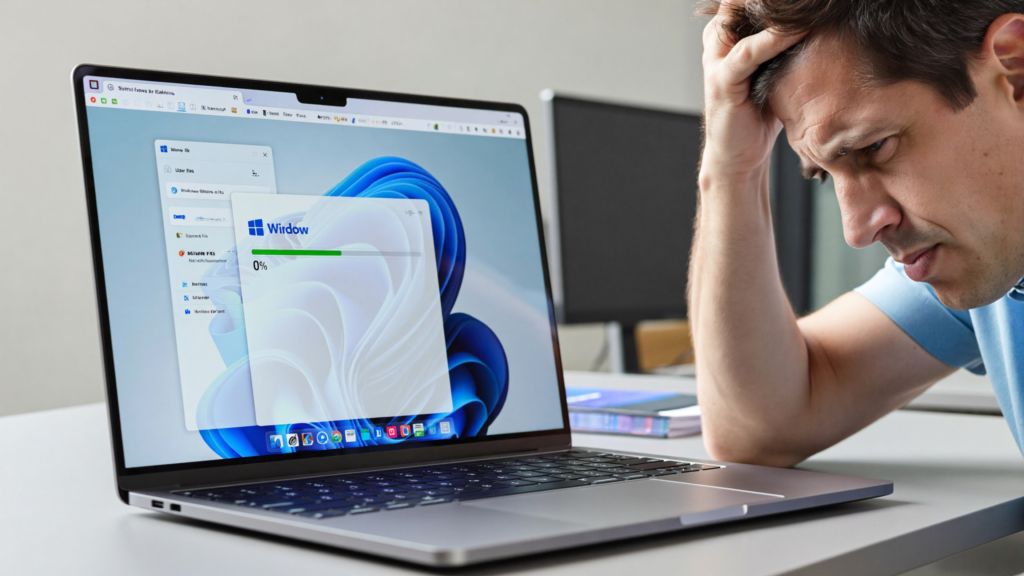
Windows 11 update stuck at 0 percent fix is a common issue where Windows updates freeze at the starting stage and fail to download or install properly.
Introduction
Windows 11 update stuck at 0 percent is a common issue where the system begins downloading updates but fails to make progress. The update may remain frozen at 0%, 20%, or even “checking for updates” indefinitely.
This problem is usually caused by corrupted update cache files, network issues, disabled update services, or system conflicts. In some cases, users may also experience repeated failures when trying to install important security updates.
In this guide, you will learn a complete windows 11 update stuck at 0 percent fix using proven troubleshooting methods.
This issue is also commonly reported as Windows 11 update stuck at 0 percent downloading, where the update process never progresses beyond the initial stage. Some users also experience Windows 11 update stuck checking for updates at 0 percent, especially after system resets or network changes.
Table of Contents
Why Windows 11 Update Gets Stuck at 0%
Windows 11 Update Stuck at 0 Percent Installing or Downloading
The windows 11 update stuck at 0 percent fix issue often appears in two stages: downloading and installing. When updates freeze at 0 percent installing, it usually means system services or cache files are blocked or corrupted.
Common causes include:
- Corrupted Windows Update cache
- Internet connectivity issues
- Disabled update services
- Software conflicts
- Low disk space
- System file corruption
How to Fix Windows 11 Update Stuck at 0 Percent Issue
Method 1: Restart Windows Update Services
- Press Windows + R
- Type services.msc
- Find Windows Update
- Right-click → Restart
This often fixes the windows 11 update stuck at 0 percent fix issue immediately.
Method 2: Clear Windows Update Cache
- Open File Explorer
- Go to:
C:\Windows\SoftwareDistribution - Delete all files inside
- Restart PC
Method 3: Run Windows Update Troubleshooter
- Open Settings
- Go to System
- Click Troubleshoot
- Run Windows Update Troubleshooter
Method 4: Reset Network Settings
Slow or unstable internet can freeze updates.
- Go to Network Settings
- Click Network Reset
- Restart PC
Method 5: Restart Background Intelligent Transfer Service (BITS)
- Open services.msc
- Find BITS
- Restart service
Method 6: Free Up Disk Space
Windows updates require free storage.
Delete temporary files or unused applications.
Method 7: Run System File Checker
Open Command Prompt (Admin):
sfc /scannowThen run:
DISM /Online /Cleanup-Image /RestoreHealthMethod 8: Manually Reset Windows Update Components
Run these commands:
net stop wuauserv
net stop bits
net stop cryptsvc
net start wuauserv
net start bits
net start cryptsvc
Related Useful topic
Windows 11 Black Screen After Login Fix Windows 11 WiFi Connected But No Internet Fix Microsoft Windows Update Troubleshooter Microsoft Windows SupportFrequently Asked Questions
Why is Windows 11 update stuck at 0 percent?
This usually happens due to corrupted update files, network issues, or disabled update services.
How do I fix Windows update stuck at 0 percent?
Restart Windows Update service, clear update cache, or run the troubleshooter.
Can low storage cause update issues?
Yes, insufficient disk space can stop updates from progressing.
Additional Windows 11 Update Stuck at 0 Percent Fix Methods
If the issue continues even after trying basic troubleshooting steps, there are a few additional solutions that can help resolve persistent update failures.
One effective windows 11 update stuck at 0 percent fix is performing a clean boot. This disables unnecessary startup programs that may interfere with Windows Update services. Many background applications can silently block update processes without showing any errors.
Another useful method is checking your system date and time settings. Incorrect time synchronization can cause Windows Update servers to reject the connection, resulting in updates getting stuck at 0 percent.
In rare cases, corrupted system image files may also cause update failures. Running advanced repair commands or restoring system integrity can resolve these deeper issues.
Final Thoughts
Most Windows 11 update stuck at 0 percent fix issues are caused by service failures, cache corruption, or network instability during update processing. Most users can resolve the problem quickly without reinstalling Windows.


1 comment