


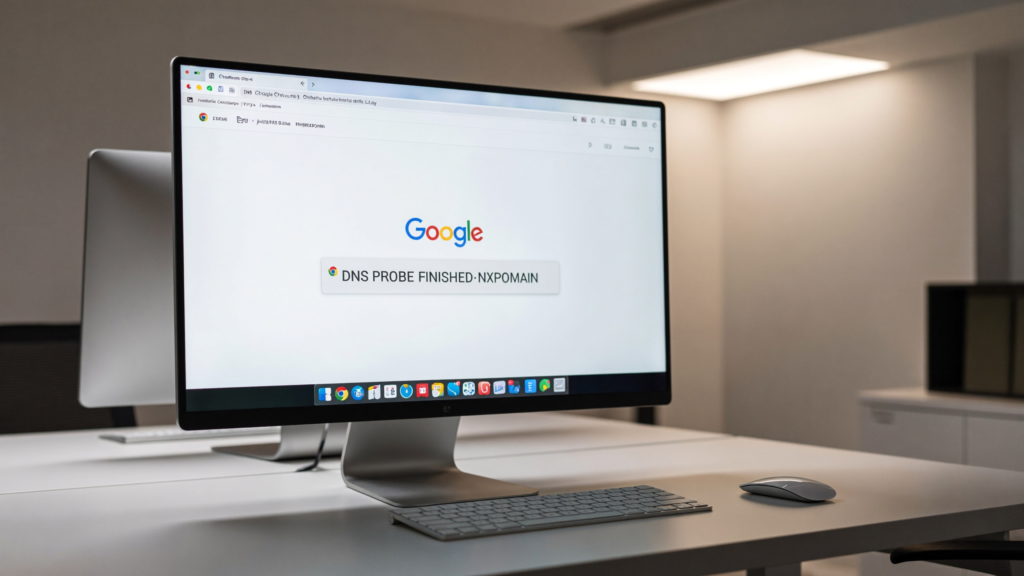
DNS_PROBE_FINISHED_NXDOMAIN Windows 11 error preventing websites from loading? Learn easy fixes that work fast, including flushing DNS cache, changing DNS servers, and resetting network settings.
Table of Contents
DNS_PROBE_FINISHED_NXDOMAIN fix Windows 11 : Easy Fixes That Work Fast
This DNS issue is a common network error that prevents websites from loading in Chrome, Edge, and other browsers. If you are seeing the DNS error message, the troubleshooting steps below can help restore your internet connection quickly.
This error usually occurs when Windows cannot translate a website name into its corresponding IP address. Fortunately, there are several proven fixes that can resolve the issue within minutes.
What Does DNS_PROBE_FINISHED_NXDOMAIN Windows 11 Mean?
The DNS_PROBE_FINISHED_NXDOMAIN Windows 11 error appears when your browser cannot locate the domain name of a website. Instead of loading the page, Chrome displays an error indicating that the site’s address cannot be found.
Common symptoms include:
- Websites refusing to load
- “This site can’t be reached” messages
- Server IP address could not be found errors
- Intermittent internet connectivity
Why Does DNS_PROBE_FINISHED_NXDOMAIN Windows 11 Occur?
Several factors can trigger the DNS_PROBE_FINISHED_NXDOMAIN Windows 11 error:
- Corrupted DNS cache
- Incorrect DNS server settings
- Router configuration problems
- VPN or proxy interference
- Damaged network settings
- ISP DNS outages
Common Symptoms of DNS_PROBE_FINISHED_NXDOMAIN Windows 11
Users experiencing the DNS_PROBE_FINISHED_NXDOMAIN Windows 11 error may notice several symptoms beyond websites failing to load. Identifying these symptoms can help confirm that DNS resolution is the cause of the problem.
Common symptoms include:
- Chrome displaying “This site can’t be reached”
- Server IP address could not be found
- Certain websites refusing to load
- Internet connection appears active but web pages won’t open
- DNS-related errors appearing in multiple browsers
- Slow or inconsistent browsing performance
If you experience one or more of these symptoms, the DNS_PROBE_FINISHED_NXDOMAIN Windows 11 error is likely related to your DNS configuration or network settings.
How to Fix DNS_PROBE_FINISHED_NXDOMAIN Windows 11
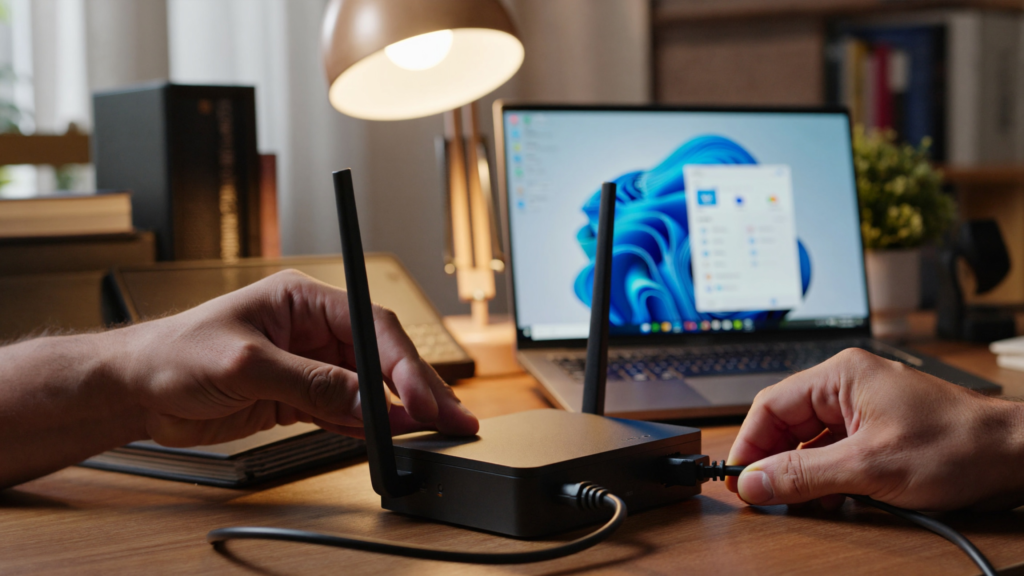
Fix 1: Restart Your Router and Computer
A simple restart often clears temporary DNS issues.
Steps
- Turn off your router.
- Wait 30 seconds.
- Turn the router back on.
- Restart your Windows 11 PC.
- Test the website again.
Fix 2: Flush the DNS Cache
Windows stores DNS records locally. If those records become corrupted, websites may fail to load.
Steps
- Press Windows + S.
- Search for Command Prompt.
- Right-click Command Prompt.
- Select Run as administrator.
- Enter:
ipconfig /flushdns
- Press Enter.
You should receive a confirmation message stating the DNS Resolver Cache has been successfully flushed.
Fix 3: Renew Your IP Address
Refreshing your network configuration can resolve communication issues.
Steps
- Open Command Prompt as administrator.
- Enter:
ipconfig /release
- Press Enter.
- Then enter:
ipconfig /renew
- Press Enter.
Restart your browser afterward.
Fix 4: Change Your DNS Server
Google Public DNS is often more reliable than ISP DNS servers.
Steps
- Press Windows + R.
- Type:
ncpa.cpl
- Press Enter.
- Right-click your active connection.
- Select Properties.
- Open Internet Protocol Version 4 (TCP/IPv4).
- Select Use the following DNS server addresses.
- Enter:
Preferred DNS: 8.8.8.8
Alternate DNS: 8.8.4.4
- Save the changes.
Learn more about Google Public DNS:
https://developers.google.com/speed/public-dns
Fix 5: Reset Network Settings
A complete network reset can fix deeper configuration issues.
Steps
- Open Settings.
- Select Network & Internet.
- Click Advanced Network Settings.
- Select Network Reset.
- Click Reset Now.
- Restart your PC.
Fix 6: Disable VPN or Proxy Services
VPNs and proxies can sometimes interfere with DNS requests.
Steps
- Disconnect your VPN.
- Disable any active proxy settings.
- Restart Chrome.
- Test the website again.
Fix 7: Check the Hosts File
Incorrect entries in the hosts file may block website access.
Steps
- Open Notepad as administrator.
- Navigate to:
C:\Windows\System32\drivers\etc
- Open the hosts file.
- Remove suspicious website entries.
- Save the file.
- Restart your browser.
How to Prevent DNS_PROBE_FINISHED_NXDOMAIN Windows 11 in the Future
While the DNS_PROBE_FINISHED_NXDOMAIN Windows 11 error can usually be fixed quickly, preventing it from happening again can save time and frustration.
Here are some best practices:
- Keep Windows 11 updated
- Restart your router regularly
- Use reliable DNS providers such as Google DNS or Cloudflare DNS
- Avoid installing unnecessary VPN applications
- Regularly clear your browser cache
- Keep your network drivers updated
Following these recommendations can significantly reduce DNS-related issues and improve browsing stability.
Frequently Asked Questions
Is DNS_PROBE_FINISHED_NXDOMAIN Windows 11 a virus?
No. This error is usually caused by DNS configuration problems rather than malware.
Can changing DNS servers fix the problem?
Yes. Switching to Google Public DNS often resolves DNS lookup failures.
Does restarting the router help?
Yes. Router restarts can clear temporary DNS and connectivity issues.
Can DNS_PROBE_FINISHED_NXDOMAIN Windows 11 affect all browsers?
Yes. Although the error commonly appears in Google Chrome, DNS_PROBE_FINISHED_NXDOMAIN Windows 11 can affect Microsoft Edge, Firefox, Opera, and other browsers because the issue originates from DNS resolution rather than the browser itself.
Is Google DNS safe to use?
Yes. Google Public DNS is one of the most widely used public DNS services and is considered safe, reliable, and free for personal use.
Can malware cause DNS_PROBE_FINISHED_NXDOMAIN Windows 11?
In some cases, malware can modify DNS settings and lead to DNS resolution problems. Running a security scan can help rule out malicious software as the cause.
Additional Resources
Microsoft Windows Networking Support:
https://support.microsoft.com/windows
Google Public DNS Documentation:
https://developers.google.com/speed/public-dns
Windows 11 WiFi Connected But No Internet Fix? Easy Step-by-Step Solutions
When to Contact Your Internet Service Provider
If none of the fixes above resolve the DNS_PROBE_FINISHED_NXDOMAIN Windows 11 error, the issue may be outside your computer.
Contact your ISP if:
- Multiple devices experience the same DNS issue
- Websites fail to load across your entire network
- Router restarts do not solve the problem
- DNS errors occur frequently throughout the day
Your provider may be experiencing DNS outages or network problems that require their assistance.
Conclusion
DNS_PROBE_FINISHED_NXDOMAIN Windows 11 is usually caused by DNS configuration problems, corrupted cache files, or incorrect network settings. By following the solutions above, most users can resolve the DNS_PROBE_FINISHED_NXDOMAIN error and restore internet access quickly. If one solution does not work, continue through the remaining fixes until the issue is resolved.