



Printer offline but connected Windows 11? Fix printer not responding issues, spooler errors, driver problems, and network printer offline errors with easy step-by-step solutions.
Printer offline but connected Windows 11 is one of the most common printer issues users face. Even when the printer shows as connected, Windows may still mark it as offline, causing printing failures, stuck print jobs, or the printer not responding at all.
This issue is often related to printer driver problems, print spooler errors, network printer offline Windows 11 issues, or incorrect printer settings. In some cases, the printer connected but not printing Windows 11 problem appears after a system update or network change.
This guide will show you step-by-step how to fix printer offline but connected Windows 11 issues quickly and permanently.
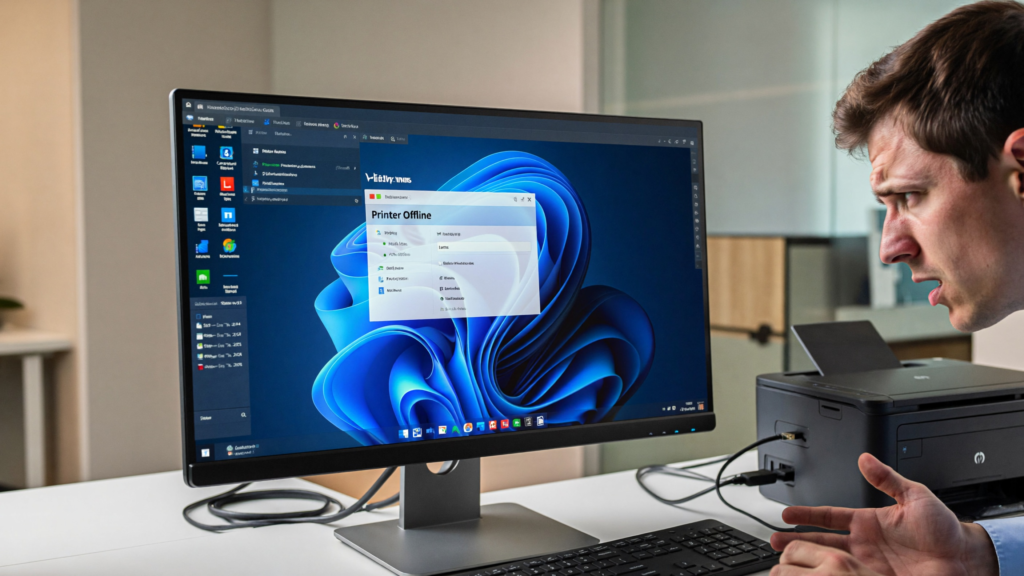
How to Fix Printer Offline But Connected Windows 11 Issue
Common causes include:
- Print Spooler service issues
- Corrupted printer drivers
- Incorrect printer settings
- Windows updates
- Network communication failures
- Offline mode enabled
- Multiple printer profiles
Table of Contents
Quick Checks Before You Start
Before applying advanced fixes:
- Restart the printer.
- Restart your PC.
- Check all cables.
- Verify Wi-Fi connectivity.
- Ensure the printer has paper and ink.
Method 1: Disable Use Printer Offline Mode
- Open Settings.
- Select Bluetooth & Devices.
- Click Printers & Scanners.
- Select your printer.
- Open the print queue.
- Click Printer.
- Disable Use Printer Offline.
Many users solve the issue immediately with this fix.
Method 2: Set the Printer as Default
- Open Settings.
- Navigate to Printers & Scanners.
- Select your printer.
- Click Set as Default.
Windows may send print jobs to another printer if the wrong device is set as default.
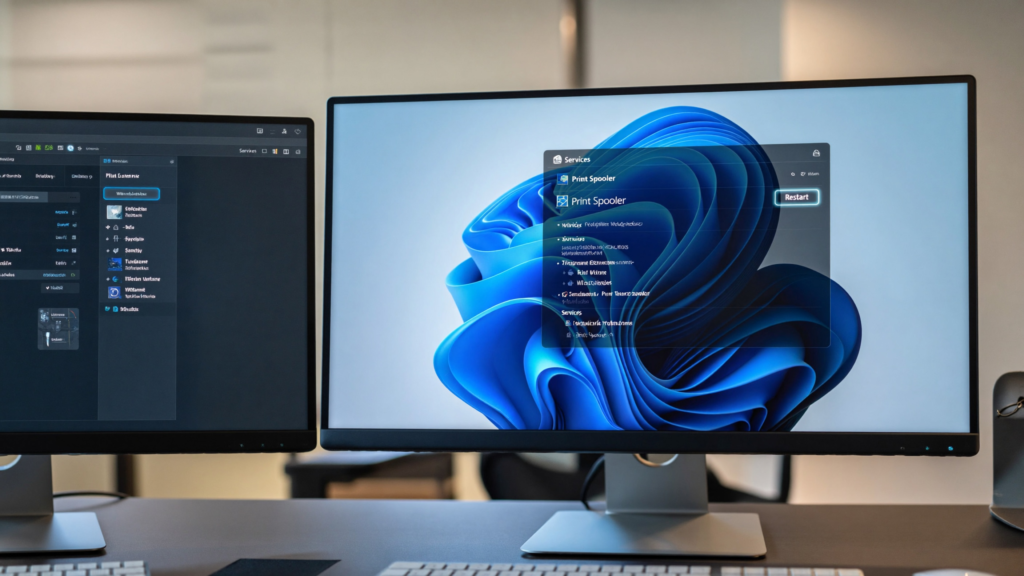
Method 3: Restart the Print Spooler Service
- Press Windows + R.
- Type services.msc.
- Locate Print Spooler.
- Right-click and choose Restart.
The Print Spooler manages all print jobs and can become stuck.
For official guidance, see Microsoft Print Spooler Service Fix.Method 4: Clear the Print Queue
- Open the printer queue.
- Cancel all pending jobs.
- Restart the printer.
- Send a new test print.
Stuck print jobs often trigger offline errors.
Method 5: Update Printer Drivers
Outdated drivers can prevent communication between Windows and your printer.
Visit your printer manufacturer’s support page and install the latest driver version.
Method 6: Remove and Reinstall the Printer
- Open Printers & Scanners.
- Select the printer.
- Click Remove Device.
- Restart Windows.
- Add the printer again.
This refreshes the connection and driver configuration.
Bluetooth Device Missing from Device Manager Windows 11Method 7: Run the Printer Troubleshooter
- Open Settings.
- Go to System.
- Select Troubleshoot.
- Click Other Troubleshooters.
- Run the Printer Troubleshooter.
Windows will automatically identify common printer issues.
Method 8: Check Network Connectivity
For wireless printers:
- Ensure the printer is connected to Wi-Fi.
- Confirm both devices use the same network.
- Restart your router.
Network interruptions frequently cause offline printer errors.
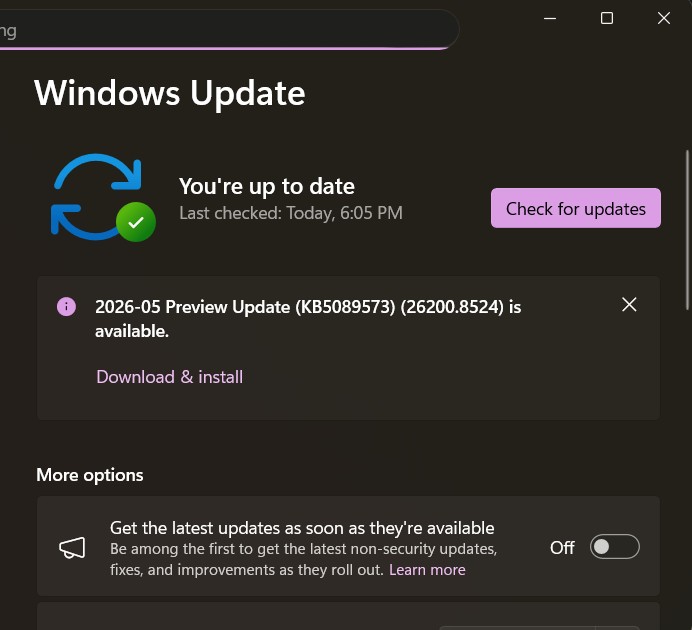
Method 9: Install Windows Updates
- Open Settings.
- Select Windows Update.
- Click Check for Updates.
Windows updates often include printer compatibility fixes.
Windows Update Error 0x80070643Method 10: Check Firewall Settings
Security software can block communication between Windows and network printers.
Temporarily disable third-party security software and test printing again.
Method 11: Reinstall the Printer Driver Completely
If nothing else works:
- Remove the printer.
- Uninstall the driver.
- Download the latest driver.
- Install the driver manually.
- Add the printer again.
This resolves many stubborn printer offline issues.
Microsoft Store Download Pending ForeverInternal Links
- Windows 11 WiFi Connected But No Internet Fix
https://fixtechissues.com/windows-11-wifi-connected-but-no-internet-fix/ - DNS Server Not Responding Windows 11
https://fixtechissues.com/dns-server-not-responding-windows-11/ - Bluetooth Device Missing From Device Manager Windows 11
https://fixtechissues.com/bluetooth-device-missing-from-device-manager-windows-11/ - Windows 11 Search Bar Not Working
https://fixtechissues.com/windows-11-search-bar-not-working/ - How to Speed Up Windows 11 and Make Your PC Run Faster
https://fixtechissues.com/how-to-speed-up-windows-11/ - Windows 11 High CPU Usage Fix
https://fixtechissues.com/windows-11-high-cpu-usage-fix/
External Authority Links
- Microsoft Printer Troubleshooting
https://support.microsoft.com/windows/fix-printer-connection-and-printing-problems-in-windows - Microsoft Printer Driver Documentation
https://learn.microsoft.com/windows-hardware/drivers/print/ - HP Printer Offline Guide
https://support.hp.com/us-en/help/printer-offline - Canon Printer Support
https://www.usa.canon.com/support
Frequently Asked Questions
Why does my printer say offline but it is connected?
Windows may be unable to communicate with the printer because of driver issues, network problems, or Print Spooler errors.
How do I get my printer back online in Windows 11?
Disable Offline Mode, restart the Print Spooler service, update drivers, and verify the printer connection.
Can Windows updates cause printer problems?
Yes. Some Windows updates can affect printer drivers or communication settings.
Should I reinstall my printer?
Yes. Reinstalling the printer is one of the most effective solutions for persistent offline errors.
Final Thoughts
Printer offline but connected Windows 11 is usually caused by communication failures, print spooler issues, incorrect settings, or outdated drivers. By following the solutions above, most users can restore printing functionality within minutes and prevent future offline errors.