





Is your Bluetooth device missing from Device Manager Windows 11? Learn how to restore Bluetooth drivers, enable services, update Windows, and fix missing Bluetooth settings with step-by-step solutions.
Bluetooth device missing from Device Manager Windows 11 is a common problem that can prevent wireless headphones, keyboards, mice, and other Bluetooth devices from connecting properly. If the Bluetooth adapter has disappeared from Device Manager or the Bluetooth toggle is missing from Settings, this guide will walk you through the most effective solutions to restore Bluetooth functionality in Windows 11.
If your Bluetooth device is missing from Device Manager in Windows 11, you’re not alone. Many users discover the problem when Bluetooth suddenly stops working, the Bluetooth toggle disappears from Settings, or wireless devices such as headphones, keyboards, and mice can no longer connect.
In most cases, the issue is caused by corrupted drivers, Windows updates, disabled services, or hardware detection problems. The good news is that you can usually restore Bluetooth functionality without reinstalling Windows.
This guide walks through the most effective solutions to fix a Bluetooth device missing from Device Manager in Windows 11.
Table of Contents
Why Is the Bluetooth Device Missing from Device Manager in Windows 11?
If you have a bluetooth device missing from device manager windows 11, the problem is usually related to drivers, Windows updates, or disabled services.
Before applying fixes, it helps to understand what may have caused the problem.
Common causes include:
- Corrupted or outdated Bluetooth drivers
- Incomplete Windows updates
- Disabled Bluetooth services
- Power management conflicts
- Hardware detection errors
- BIOS configuration issues
- Missing chipset or wireless adapter drivers
When Windows cannot properly detect the Bluetooth adapter, it may disappear entirely from Device Manager.
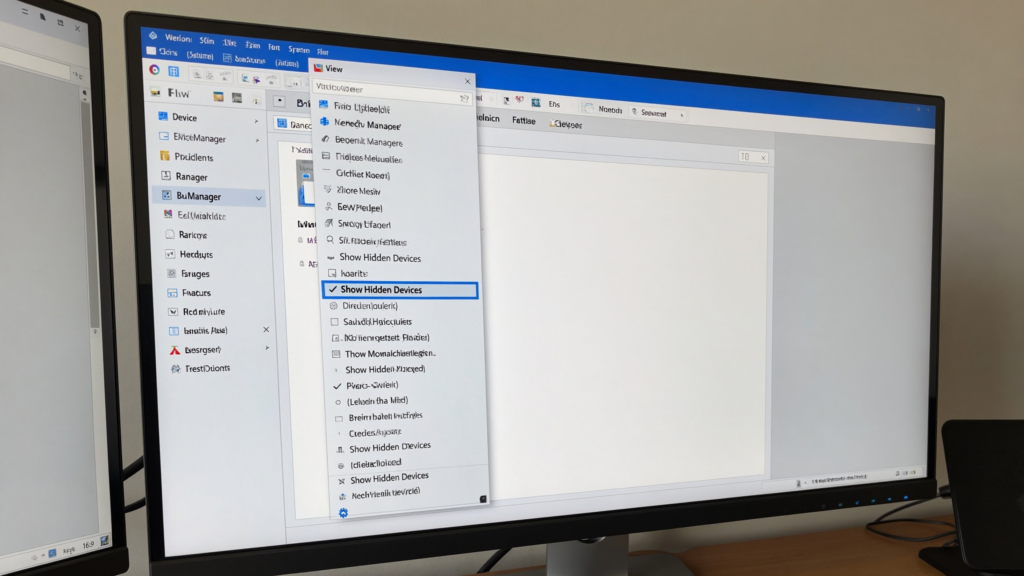
One of the first fixes for a bluetooth device missing from device manager windows 11 is to show hidden devices in Device Manager.
Method 1: Show Hidden Devices in Device Manager
Sometimes the Bluetooth adapter is still installed but hidden.
Steps:
- Press Windows + X.
- Select Device Manager.
- Click View.
- Choose Show hidden devices.
- Expand the Bluetooth section.
If your Bluetooth adapter appears faded or grayed out, right-click it and select Enable device.
Restart your computer and check if Bluetooth returns.
Method 2: Run the Bluetooth Troubleshooter
Windows includes a built-in troubleshooter that can automatically detect and repair common Bluetooth issues.
Steps:
- Open Settings.
- Go to System > Troubleshoot > Other troubleshooters.
- Find Bluetooth.
- Click Run.
Allow Windows to complete the scan and apply any recommended fixes.
Method 3: Restart the Bluetooth Support Service
Bluetooth depends on several background services.
Steps:
- Press Windows + R.
- Type services.msc.
- Press Enter.
- Locate Bluetooth Support Service.
- Double-click the service.
- Set Startup type to Automatic.
- Click Start if the service is stopped.
- Click Apply and OK.
Restart your computer afterward.

Reinstalling drivers can often resolve a bluetooth device missing from device manager windows 11 problem.
Method 4: Reinstall the Bluetooth Driver
A damaged driver is one of the most common reasons a Bluetooth adapter disappears from Device Manager.
Steps:
- Open Device Manager.
- Click View > Show hidden devices.
- Expand Bluetooth.
- Right-click your Bluetooth adapter.
- Select Uninstall device.
- Confirm the removal.
- Restart your PC.
Windows will attempt to reinstall the driver automatically during startup.
If it doesn’t, download the latest driver from your laptop or motherboard manufacturer’s website.

Method 5: Scan for Hardware Changes
Windows may need to re-detect the Bluetooth adapter.
Steps:
- Open Device Manager.
- Click the computer name at the top.
- Select Action.
- Click Scan for hardware changes.
Wait several seconds for Windows to detect missing hardware.
Method 6: Update Windows 11
Missing Bluetooth devices often appear after failed or incomplete Windows updates.
Steps:
- Open Settings.
- Navigate to Windows Update.
- Click Check for updates.
- Install all available updates.
- Restart the computer.
Many Bluetooth driver issues are resolved through Windows Update.
Method 7: Repair System Files Using SFC and DISM
Corrupted system files can prevent Windows from loading Bluetooth components correctly.
Run SFC Scan
- Open Command Prompt as Administrator.
- Enter:
sfc /scannow
- Press Enter.
- Wait for the scan to finish.
Run DISM
After SFC completes:
DISM /Online /Cleanup-Image /RestoreHealth
Allow the process to finish and restart your computer.
Method 8: Disable Fast Startup
Fast Startup can occasionally interfere with hardware initialization.
Steps:
- Open Control Panel.
- Select Power Options.
- Click Choose what the power buttons do.
- Select Change settings that are currently unavailable.
- Uncheck Turn on fast startup.
- Save changes.
Restart the computer and test Bluetooth again.
Method 9: Check BIOS Settings
Some systems allow Bluetooth hardware to be disabled from the BIOS.
Steps:
- Restart your computer.
- Enter BIOS or UEFI settings.
- Locate wireless or onboard device settings.
- Verify Bluetooth is enabled.
- Save changes and exit.
The exact location varies depending on the manufacturer.
How to Prevent Bluetooth from Disappearing Again
Reduce the chances of future Bluetooth problems:
- Keep Windows updated.
- Install manufacturer-approved drivers.
- Avoid driver-cleaning utilities.
- Create restore points before major updates.
- Update chipset and wireless drivers regularly.
- Shut down your PC properly after updates.

Why is my bluetooth device missing from device manager windows 11?
Frequently Asked Questions
Why is Bluetooth not showing in Device Manager?
If your bluetooth device missing from device manager windows 11 issue persists, consider updating chipset drivers or checking BIOS settings.
The Bluetooth driver may be corrupted, the Bluetooth service may be disabled, or Windows may not be detecting the adapter correctly.
Can Windows updates remove Bluetooth drivers?
In some cases, major Windows updates can replace or damage existing drivers, causing Bluetooth devices to disappear.
How do I reinstall Bluetooth drivers in Windows 11?
Uninstall the Bluetooth device from Device Manager and restart your PC. Windows should reinstall the driver automatically. You can also download the latest driver from your device manufacturer’s website.
Why is the Bluetooth toggle missing in Windows 11?
The toggle usually disappears when Windows cannot detect the Bluetooth adapter or the Bluetooth service is not running.
Final Thoughts
A Bluetooth device missing from Device Manager in Windows 11 is usually caused by driver corruption, Windows update issues, or disabled Bluetooth services. Start with the simple fixes such as showing hidden devices, restarting Bluetooth services, and scanning for hardware changes. If the issue persists, reinstall the driver and repair Windows system files using SFC and DISM.
In most cases, one of these methods will restore Bluetooth functionality and allow your wireless devices to connect normally again.
For more Bluetooth troubleshooting tips, read our Windows 11 Bluetooth Disappeared After Update guide.


1 comment