


Why notifications stop showing up
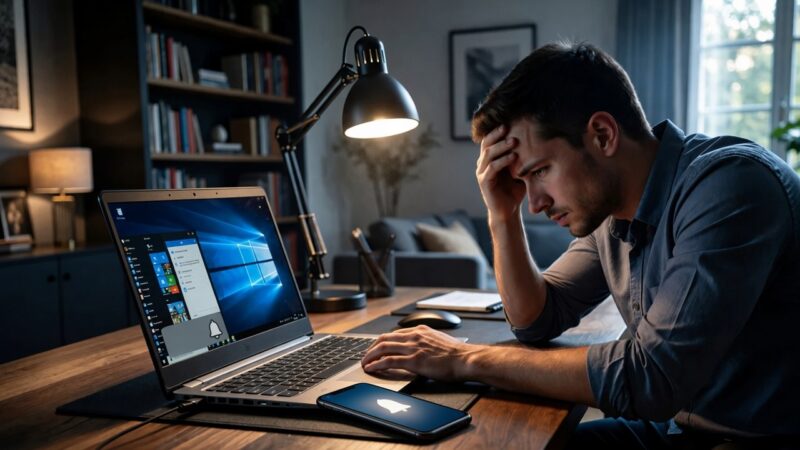
Your phone buzzes with a new message, but your PC stays silent. No banner slides in, and the bell in the corner of the taskbar shows nothing. If you have Windows 11 notifications not showing, the reason is almost always a setting, not a broken PC:
Table of Contents
- Do not disturb is on, either because you turned it on or because an automatic rule did it for you (during games, full-screen apps, or set hours).
- A Focus session is running. Starting Focus turns on Do not disturb until the session ends.
- The app’s own notification settings are off, or banners are off while notifications still go to the notification center.
- The app can’t run in the background, so it never gets the chance to send anything.
- The push notification services have stalled, or a policy has turned notifications off.
The fixes below start with the settings behind most cases of Windows 11 notifications not showing. Test after each one by sending yourself a notification, for example a test email or a chat message.
Check the basics first
- Press Windows key + N to open the notification center. If your missing alerts are listed there, Windows received them but didn’t show a banner. Jump to Fix 3.
- Go to Start > Settings > System > Notifications and make sure the Notifications switch at the top is On.
- Restart the PC with Start > Power > Restart. A restart clears a stuck notification service more often than you’d expect.
On Windows 10, the same settings are under Settings > System > Notifications & actions, and Do not disturb is called Focus assist.
How to fix Windows 11 notifications not showing
1. Turn off Do not disturb
While Do not disturb is on, banners don’t appear. Notifications go straight to the notification center instead, so it’s the first thing to check when you have Windows 11 notifications not showing.
- Press Windows key + N.
- If the bell icon with “zZ” is highlighted, select it to turn Do not disturb off.
- Or go to Settings > System > Notifications and turn Do not disturb off.
Microsoft’s guide to notifications and Do not disturb in Windows explains each of these options.
2. Do not disturb keeps turning on? Turn off the automatic rules
If you find that Do not disturb keeps turning on every day, an automatic rule is switching it on.
- Go to Settings > System > Notifications.
- Expand Turn on do not disturb automatically.
- Untick the rules you don’t want: During these times, When duplicating your display, When playing a game, When using an app in full-screen mode, and For the first hour after a Windows feature update.
Also check Settings > System > Focus. If a Focus session is running, select Stop focus session. To stop Focus from silencing alerts in the future, untick Turn on do not disturb on that page.
These rules are a common reason for Windows 11 notifications not showing during games, presentations, or video calls, because those often run full screen or use a duplicated display.
3. Fix notification banners not showing for an app
If an alert lands in the notification center but no pop-up appears, you have notification banners not showing for that app.
- Go to Settings > System > Notifications.
- Under Notifications from apps and other senders, make sure the app’s switch is On.
- Select the app’s name to open its options.
- Turn on Show notification banners and Show notifications in notification center.
- Turn on Play a sound if you want to hear alerts.
If you hear the notification sound but see nothing, banners are off for that app. If you see banners but hear nothing, check Play a sound here, then our Windows 11 no sound fix guide.
4. Check the app’s own notification settings
Many apps have a second set of notification options inside the app. Windows can’t show what the app never sends.
- Mail, Teams, and chat apps: open the app’s settings and check that desktop notifications are on. In Teams, a Do not disturb status also silences alerts.
- Websites in Chrome or Edge: check that the browser allows notifications for the site. In Edge, go to Settings > Cookies and site permissions > Notifications. In Chrome, go to Settings > Privacy and security > Site settings > Notifications.
- Make sure you’re signed in. Many apps only send alerts when you’re signed in and the app is set to start with Windows.
Fixing app notifications not working in the background
When app notifications not working affects one app even though its settings are right, the app may not be allowed to run in the background.
5. Allow the app to run in the background
- Go to Settings > Apps > Installed apps.
- Select the three dots next to the app, then Advanced options. (This option appears only for apps from the Microsoft Store.)
- Under Background apps permissions, choose Always or Power optimized.
On newer versions of Windows 11, you can also find this under Settings > System > Power & battery: open the app’s options and select Manage background activity.
6. Turn off Energy saver or Battery saver while you test
Saving power can limit background activity, which delays or blocks notifications. Go to Settings > System > Power & battery and turn off Energy saver (called Battery saver on older versions). Then test again. If notifications return, set Energy saver to turn on only at a lower battery level.
Restart the notification services
7. Restart the Windows Push Notifications services
Windows delivers notifications through two background services. If either has stalled, nothing appears, and you’re left with Windows 11 notifications not showing for every app at once.
- Press Windows key + R, type
services.msc, and press Enter. - Find Windows Push Notifications System Service, right-click it, and select Restart.
- Find the Windows Push Notifications User Service (its name ends with a short code, such as
_1a2b3c). Right-click it and select Restart. - Open Task Manager (Ctrl + Shift + Esc), right-click Windows Explorer, and select Restart.
Restarting the Windows Push Notifications User Service is safe. If a service shows as Disabled, double-click it, set Startup type to Automatic, select Start, and then OK.
If the taskbar, Start, and the notification center all freeze together, our guide to the Windows 11 Start menu not working covers shell problems in more depth.
8. Reset the notification database
A damaged notification database can stop new alerts. Resetting it clears the list in the notification center, but no settings or files.
- In services.msc, right-click Windows Push Notifications User Service and select Stop.
- Press Windows key + R, type
%LocalAppData%\Microsoft\Windows, and press Enter. - Rename the Notifications folder to Notifications.old.
- Restart the PC. Windows creates a fresh Notifications folder.
If the folder won’t rename, restart the PC, stop the service again, and try once more.
9. Check for a policy that turns notifications off
On some PCs, a policy blocks notifications. This is common on work or school devices and sometimes happens after “privacy tweak” tools.
Work or school PC? If your organization manages the device, the setting is probably intentional. Ask your IT team.
On Windows 11 Pro, Enterprise, or Education:
- Press Windows key + R, type
gpedit.msc, and press Enter. - Go to User Configuration > Administrative Templates > Start Menu and Taskbar > Notifications.
- Set Turn off toast notifications to Not Configured.
- Restart the PC.
On Windows 11 Home, open Registry Editor (regedit), back up the registry first (File > Export), and go to:
HKEY_CURRENT_USER\Software\Policies\Microsoft\Windows\CurrentVersion\PushNotificationsIf you see NoToastApplicationNotification set to 1, delete it and restart.
If notifications still don’t show
If you still have Windows 11 notifications not showing after all of this:
- Install pending updates from Settings > Windows Update. If updates won’t install, see our guide to a Windows 11 update stuck at 0 percent.
- Repair system files. In Terminal (Admin), run
DISM.exe /Online /Cleanup-image /Restorehealth, thensfc /scannow, and restart. - Test a new user account. If notifications work there, the problem is in your profile’s settings.
- Turn on taskbar badges if you rely on unread counts: Settings > Personalization > Taskbar > Taskbar behaviors > Show badges on taskbar apps.
Microsoft also has a short troubleshooting page for when notifications don’t show in the notification center, which focuses on Do not disturb.
FAQ
Why are my Windows 11 notifications not showing?
The most common cause is Do not disturb, which keeps turning on through an automatic rule for games, full-screen apps, or set hours. Turn it off, untick the automatic rules, and check that the app’s banners are on.
Why do notifications go to the notification center without a pop-up?
Either Do not disturb is on, or Show notification banners is off for that app. Check both in Settings > System > Notifications.
What if Do not disturb keeps turning on by itself?
An automatic rule or a Focus session is switching it on. Go to Settings > System > Notifications > Turn on do not disturb automatically and untick the rules you don’t need.
Is it safe to restart the Windows Push Notifications User Service?
Yes. Restarting it only reloads the notification system. You won’t lose settings or files.
Will resetting the Notifications folder delete my settings?
No. It clears the current list of notifications in the notification center. Your per-app notification settings stay in place.