



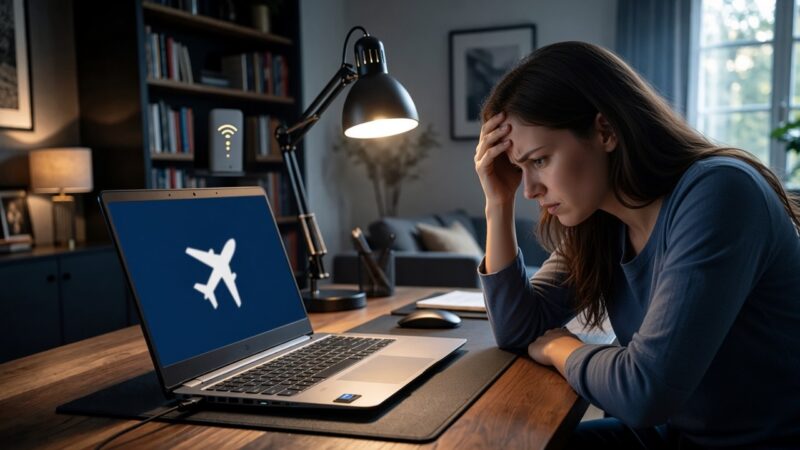
Why airplane mode won’t switch off
Airplane mode turns off every wireless radio at once: Wi-Fi, Bluetooth, and mobile data. That’s handy on a flight, but a real problem when the switch won’t flip back. If you have airplane mode not turning off on Windows 11, you’ll usually see one of these:
Table of Contents
- The Airplane mode tile stays blue no matter how often you select it.
- The switch is greyed out, so you can’t change it at all.
- It turns off, then comes back on after a restart or by itself.
- Windows reports the wireless radio as off, even though airplane mode looks off.
When airplane mode not turning off happens, the cause is usually a stuck service, a hardware wireless switch, or the Wi-Fi driver. The fixes below run from quickest to most involved. Test after each one.
Try both switches first
Windows has two places to change airplane mode, and it’s worth trying both:
- Press Windows key + A to open Quick Settings and select Airplane mode.
- Go to Settings > Network & internet > Airplane mode and turn it Off. On the same page, make sure Wi-Fi and Bluetooth are On under Wireless devices.
- Restart the PC with Start > Power > Restart.
On Windows 10, the switch is in Action Center and in Settings > Network & Internet > Airplane mode. The fixes below are the same.
Fixes for airplane mode not turning off
1. Check the wireless key or switch
Many laptops have a key with an airplane or antenna icon, usually on the top row. Some older laptops have a sliding switch on the side or front.
- Press the airplane key, or hold Fn and press it.
- If your laptop has a physical wireless switch, slide it to On.
- Check Quick Settings again.
This hardware switch overrides Windows. If it’s off, airplane mode stays on, and no setting will change it. Some laptops show an on-screen message or a small light when you press the key.
Check whether the airplane mode not turning off problem is gone before you move on to the next fix.
Once this is done, check again whether the airplane mode not turning off problem is still there.
2. Restart the Radio Management Service
Windows uses the Radio Management Service to control airplane mode. If it has stalled or been disabled, the switch freezes or turns grey.
- Press Windows key + R, type
services.msc, and press Enter. - Find Radio Management Service and double-click it.
- If Startup type is Disabled, change it to Manual.
- Select Start (or Stop, then Start if it’s already running).
- Select OK and try the airplane mode switch again.
Tweaking tools and “debloat” scripts sometimes disable this service. If you used one, check it first, because a disabled service leaves airplane mode not turning off no matter what you click.
If the airplane mode not turning off problem happens again later, come back to this step first.
Give it a minute after this step before you decide whether the airplane mode not turning off problem is gone.
3. Turn off fast startup
Fast startup saves part of Windows to disk when you shut down. It can also save a stuck radio state, so airplane mode comes back on every time you turn the PC on. If the problem appears only after a shutdown, and never after a restart, fast startup is the likely reason.
- Press Windows key + R, type
powercfg.cpl, and press Enter. - Select Choose what the power buttons do.
- Select Change settings that are currently unavailable.
- Untick Turn on fast startup (recommended) and select Save changes.
- Shut down, wait a few seconds, and turn the PC back on.
Small steps like this one are often all it takes to sort out the airplane mode not turning off problem.
If the airplane mode not turning off problem is still there, nothing is lost by moving on.
Airplane mode greyed out
If you see airplane mode greyed out, Windows usually can’t find a wireless adapter it can control.
4. Enable the Wi-Fi adapter
- Right-click Start and select Device Manager.
- Expand Network adapters.
- Find your Wi-Fi adapter (its name often includes Wi-Fi, Wireless, or 802.11).
- If it has a down-arrow icon, right-click it and select Enable device.
- If it has a yellow warning icon, double-click it and read the Device status message.
If there’s no Wi-Fi adapter at all, open View > Show hidden devices. Then choose Action > Scan for hardware changes. If it still doesn’t appear, the adapter may be turned off in the BIOS or UEFI setup, or it may have failed.
Make a note of which step cured the airplane mode not turning off problem so you can repeat it quickly next time.
Fixing the airplane mode not turning off problem is easier when you change one thing at a time.
5. Stop Windows from turning off the adapter
Windows can switch off the Wi-Fi adapter to save power, and it doesn’t always switch it back on.
- In Device Manager, double-click your Wi-Fi adapter.
- Open the Power Management tab.
- Untick Allow the computer to turn off this device to save power.
- Select OK and restart.
Not every adapter has this tab. If yours doesn’t, skip this step.
Test the PC for a few minutes to see if the airplane mode not turning off problem still shows up.
Try to open your usual apps now and see if the airplane mode not turning off problem has cleared.
6. Update or reinstall the Wi-Fi driver
A damaged Wi-Fi driver is a common reason for a grey switch after a Windows update.
- In Device Manager, right-click the Wi-Fi adapter and select Update driver, then Search automatically for drivers.
- If that doesn’t help, right-click it again and select Uninstall device. Leave the box to delete the driver unticked, and select Uninstall.
- Restart the PC. Windows reinstalls the adapter.
If Windows can’t find a driver, download one for your exact model from the laptop maker’s support site on another device and copy it over with a USB drive.
If the airplane mode not turning off problem isn’t fixed after this, carry on to the next fix.
Take it slowly here, since the airplane mode not turning off problem can look fixed for a moment and then return.
Airplane mode turns on by itself
When airplane mode turns on by itself, something is sending the “airplane” signal.
7. Check the laptop’s hotkey driver
The airplane key on many laptops is handled by a small driver from the laptop maker, often listed under Human Interface Devices in Device Manager. If that driver is buggy, the laptop can think the key was pressed.
- Install the latest hotkey, wireless button, or system control driver for your model from the maker’s support site.
- If it switches on only when you open the lid or wake the PC, a BIOS update from the maker may also help.
Also check that nothing is pressing the key, such as a laptop sleeve, a stuck key, or a keyboard cover.
A restart after this step helps you confirm that the airplane mode not turning off problem is really gone.
8. Run the network troubleshooter
If Windows says wireless capability is turned off, the network troubleshooter can often find the cause and switch the radio back on.
- Go to Settings > System > Troubleshoot > Other troubleshooters.
- Run Network and Internet (on newer versions it opens in the Get Help app).
- Apply any fixes it suggests and restart.
Microsoft’s guide to fixing Wi-Fi connection issues in Windows also starts by checking that airplane mode is off and Wi-Fi is on.
Keep this step in mind whenever the airplane mode not turning off problem returns.
9. Reset network settings
If airplane mode not turning off continues after all of the above, reset the network stack. This removes and reinstalls network adapters and sets networking back to default.
- Go to Settings > Network & internet > Advanced network settings.
- Select Network reset, then Reset now, and confirm.
- The PC restarts after a few minutes.
You’ll need to reconnect to Wi-Fi networks and set up any VPN again afterwards.
Don’t skip this step, because it is easy to miss when you are chasing the airplane mode not turning off problem.
Signs it’s a hardware problem
Most cases of airplane mode not turning off are software problems. A few signs point to hardware instead:
- The Wi-Fi adapter never appears in Device Manager, even with hidden devices shown and after a BIOS reset.
- Wireless is switched off in the BIOS or UEFI setup and turns itself off again after you enable it.
- The problem started after the laptop was dropped, opened for repair, or got wet.
As a test, plug in a USB Wi-Fi adapter. If it works, the built-in card or its antenna connection likely needs service. Contact the laptop maker, especially if the laptop is under warranty.
Quick reference
| What you see | Try first |
|---|---|
| Tile stays blue | Wireless key or switch (Fix 1), then restart the service (Fix 2) |
| Switch is greyed out | Enable the Wi-Fi adapter (Fix 4) and update its driver (Fix 6) |
| Comes back after shutdown | Turn off fast startup (Fix 3) |
| Turns on by itself | Laptop hotkey driver (Fix 7) |
| Wireless reported as off | Network troubleshooter (Fix 8) |
After airplane mode is off
Turning off airplane mode doesn’t always turn Wi-Fi or Bluetooth back on. Windows remembers the state each radio was in. Check both in Quick Settings.
- If Wi-Fi connects but nothing loads, see our guide to WiFi connected but no internet on Windows 11.
- If Bluetooth has disappeared, see Bluetooth missing from Device Manager.
- Install pending updates in Settings > Windows Update. If they’re stuck, try our Windows 11 update stuck at 0 percent guide.
FAQ
Why is my airplane mode not turning off on Windows 11?
Airplane mode not turning off is most often caused by a laptop wireless key or switch that’s off, a stopped radio service, or a faulty Wi-Fi driver. Check the key first, then restart the service.
Why is airplane mode greyed out?
Windows can’t find a wireless adapter it can control, or the radio service is disabled. Enable the Wi-Fi adapter in Device Manager and set the service’s startup type to Manual.
Why does airplane mode turn on by itself?
It’s often the laptop’s airplane key driver or fast startup restoring an old radio state. Update the hotkey driver from the laptop maker and turn off fast startup.
What does “wireless capability is turned off” mean?
Windows has detected that the Wi-Fi radio is switched off, by airplane mode, a hardware switch, or power saving. Check the wireless key, turn off airplane mode, and untick the power-saving option for the adapter.
Is it safe to restart this radio service?
Yes. Restarting it only reloads the airplane mode controls. It doesn’t change your network settings.