




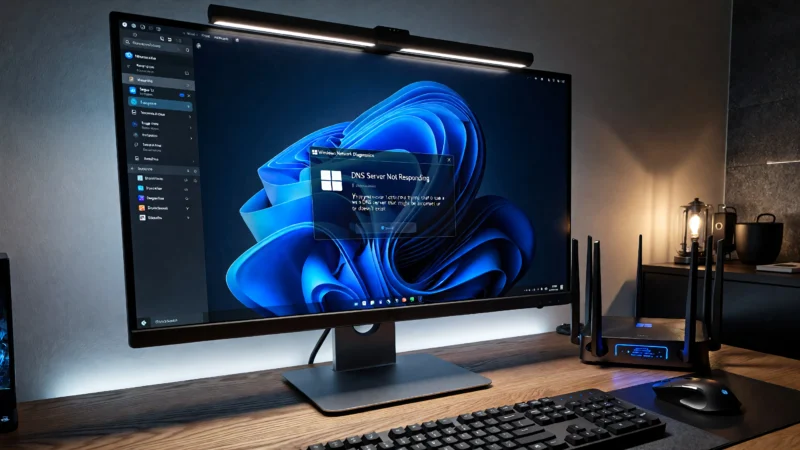
DNS Server Is Not Working is one of the most frustrating internet errors because it can make websites stop loading even when your WiFi appears connected. You might see messages such as “DNS server cannot be reached,” “DNS server not responding,” or simply notice that websites fail to load despite having an active internet connection.
This issue affects Windows PCs, laptops, routers, mobile devices, and even smart TVs. In many cases, the problem is caused by incorrect DNS settings, router configuration issues, ISP outages, or slow DNS resolution.
The good news is that most DNS problems can be fixed without replacing hardware or contacting your internet provider. This guide covers proven troubleshooting methods that can resolve WiFi DNS issues, router DNS problems, DNS connectivity issues, and slow DNS response times.
By the end of this article, you’ll know how to identify the cause of the problem and restore normal internet access.
If your internet is connected but websites still refuse to load, you may also want to read our guide on Windows 11 WiFi Connected But No Internet Fix? Easy Step-by-Step Solutions. Users experiencing browser-specific DNS errors should also check our tutorial on DNS_PROBE_FINISHED_NXDOMAIN Windows 11: Easy Fixes That Work Fast.
Table of Contents
What Does DNS Server Is Not Working Mean?
A DNS server acts like the internet’s phone book.
When you type a website address such as:
google.com
your device doesn’t actually connect using the website name. Instead, it asks a DNS server to find the corresponding IP address.
For example:
google.com → 142.250.x.x
Without DNS, you would need to remember numerical IP addresses for every website you visit.
When a DNS server is not working, your device cannot translate website names into IP addresses. As a result:
- Websites fail to load
- Browsers display error messages
- Online services stop responding
- Internet access appears broken
This is why DNS issues can make it seem like your internet connection is down even when the connection itself is functioning correctly.
Common Signs of DNS Problems
DNS issues often appear differently depending on the device and network setup.
Common symptoms include:
- Websites taking a long time to load
- Browser displays “This site can’t be reached”
- DNS server cannot be reached errors
- WiFi connected but internet not working
- Random website loading failures
- Slow DNS resolution
- DNS connectivity issues across multiple devices
- Router DNS problems affecting the whole network
- PC DNS issues that occur intermittently
- Laptop DNS problems after waking from sleep mode
Many users assume their ISP is having problems when the real issue is a DNS server configuration problem.
What Causes DNS Issues?
Several factors can trigger DNS failures.
1. Incorrect DNS Settings
If your DNS addresses are entered incorrectly, your device cannot contact a valid DNS server.
2. Router DNS Problems
Your router may distribute invalid DNS information to every connected device.
This often creates:
- WiFi DNS issues
- DNS problem WiFi errors
- DNS problem no internet situations
throughout the entire home network.
3. ISP DNS Issues
Internet providers sometimes experience DNS outages.
When this happens:
- Websites may stop loading
- DNS cannot be reached errors appear
- Multiple devices experience the same issue
4. Corrupted DNS Cache
Windows stores DNS records locally.
When these records become outdated or corrupted, DNS lookups may fail.
5. VPN or Security Software
VPN applications and security programs occasionally interfere with DNS communication.
6. Network Driver Problems
Outdated network drivers can cause:
- DNS connectivity issues
- Slow DNS resolution
- DNS response delays
How DNS Works
Understanding DNS makes troubleshooting easier.
The process works like this:
- You enter a website address.
- Your browser requests the website’s IP address.
- The DNS server receives the request.
- The DNS server returns the IP address.
- Your browser loads the website.
If any step fails, the website cannot load correctly.
This is why a slow DNS response time can create browsing delays even when your internet speed is otherwise fast.
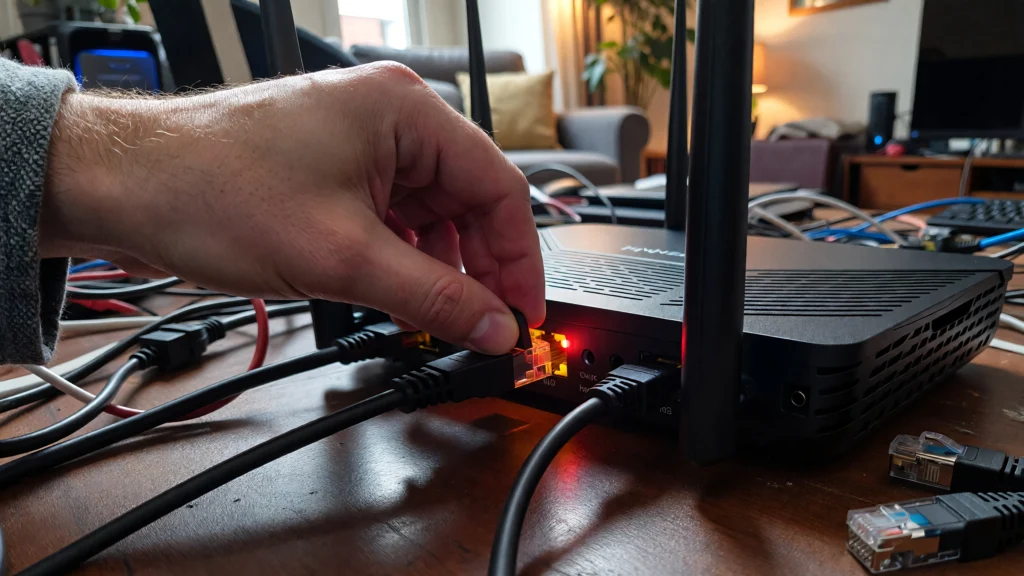
Fix 1: Restart Your Router
One of the simplest solutions is restarting the router.
Temporary router DNS issues often disappear after a restart.
Steps
- Turn off the router.
- Unplug the power cable.
- Wait 30 seconds.
- Reconnect power.
- Turn the router back on.
- Wait until all lights stabilize.
- Test your connection.
Many DNS connectivity issues are resolved by this simple procedure.
Fix 2: Flush the DNS Cache
A corrupted DNS cache can prevent websites from loading.
Flushing the cache forces Windows to request fresh DNS records.
Steps
- Press Windows + S.
- Search for Command Prompt.
- Right-click Command Prompt.
- Select Run as Administrator.
- Enter:
ipconfig /flushdns
- Press Enter.
You should see:
Successfully flushed the DNS Resolver Cache.
Why This Works
Old DNS records may point to outdated IP addresses.
Clearing them allows your device to retrieve updated information.
Fix 3: Change Your DNS Server
Many ISP DNS servers are slower than public alternatives.
Switching to Google DNS or Cloudflare DNS can improve reliability and speed.
Google DNS
Preferred DNS:
8.8.8.8
Alternate DNS:
8.8.4.4
Cloudflare DNS
Preferred DNS:
1.1.1.1
Alternate DNS:
1.0.0.1
Steps
- Press Windows + R.
- Type:
ncpa.cpl
- Press Enter.
- Open your active network connection.
- Select Properties.
- Open IPv4 Settings.
- Enter the DNS addresses above.
- Save the changes.
Fix 4: Restart the DNS Client Service
Windows includes a DNS Client service that manages DNS lookups.
If this service stops responding, websites may fail to load.
Steps
- Press Windows + R.
- Type:
services.msc
- Press Enter.
- Locate DNS Client.
- Right-click the service.
- Select Restart.
- Test your browser.
Why This Works
Restarting the service refreshes DNS communication without requiring a full system restart.
Fix 5: Reset Network Settings
If DNS Server Is Not Working errors continue, resetting your network settings can help remove incorrect configurations that may be causing DNS connectivity issues.
Steps
- Open Settings.
- Select Network & Internet.
- Click Advanced Network Settings.
- Choose Network Reset.
- Click Reset Now.
- Restart your computer.
This process removes and reinstalls network adapters while restoring default networking settings.
Many users experiencing WiFi DNS issues and DNS problem WiFi errors report success after performing a network reset.
Why This Works
Over time, network settings can become corrupted due to software installations, VPNs, network changes, or Windows updates. Resetting the network stack clears these issues and allows Windows to rebuild its network configuration from scratch.
Fix 6: Update Network Drivers
Outdated network drivers can cause PC DNS issues, laptop DNS problems, and intermittent DNS connectivity failures.
Steps
- Press Windows + X.
- Open Device Manager.
- Expand Network Adapters.
- Right-click your active adapter.
- Select Update Driver.
- Choose Search Automatically for Drivers.
- Install available updates.
- Restart your PC.
Why This Works
Network drivers control communication between Windows and your network hardware. An outdated driver can lead to DNS response delays, packet loss, and connection instability.
If you recently upgraded Windows, updating your drivers should be one of the first troubleshooting steps you perform.
Fix 7: Disable VPN and Security Software Temporarily
VPN applications and security software can occasionally interfere with DNS communication.
This can create:
- DNS connectivity issues
- Slow DNS resolution
- DNS server cannot be reached errors
- DNS problem no internet situations
Steps
- Disconnect your VPN.
- Disable DNS filtering features.
- Temporarily disable third-party antivirus software.
- Restart your browser.
- Test website access.
If the problem disappears, review your VPN or security settings before re-enabling protection.
Why This Works
Some VPN providers route DNS traffic through their own servers. If those servers become slow or unavailable, browsing performance can suffer significantly.
Fix 8: Check Router DNS Settings
Many router DNS problems originate directly from incorrect DNS configuration inside the router.
If every device connected to your network experiences DNS issues, your router should be investigated.
Steps
- Log in to your router’s administration panel.
- Navigate to Internet or WAN settings.
- Locate DNS configuration.
- Verify DNS server addresses.
- Replace questionable DNS servers with:
Google DNS
Primary:
8.8.8.8
Secondary:
8.8.4.4
Cloudflare DNS
Primary:
1.1.1.1
Secondary:
1.0.0.1
- Save the changes.
- Restart the router.
Why This Works
Your router often distributes DNS information to every connected device. If the router contains incorrect DNS settings, all devices may experience WiFi DNS issues simultaneously.
Fix 9: Test DNS Response Time
Sometimes a DNS server is technically working but responding too slowly.
This creates:
- Slow DNS resolution
- DNS lag
- Website loading delays
- Random browsing slowdowns
How to Check DNS Response Time
Open Command Prompt and run:
nslookup google.comObserve how quickly the DNS server responds.
You can also use online DNS benchmarking tools to measure:
- DNS response time
- DNS server response time
- DNS latency
- DNS lookup speed
Why DNS Response Time Matters
A slow DNS server can affect browsing performance even when your internet speed is fast.
For example:
- Fast internet + slow DNS = slow browsing
- Fast internet + fast DNS = responsive browsing
This is why many users switch from ISP DNS servers to Google DNS or Cloudflare DNS.
Fix 10: Check for ISP DNS Issues
Sometimes the problem isn’t your computer or router.
Your internet provider may be experiencing DNS outages.
Signs of ISP DNS Issues
- Multiple devices affected
- Websites fail to load across the network
- DNS errors appear suddenly
- Restarting equipment does not help
How to Verify
Try changing your DNS server to:
Google DNS
8.8.8.8
8.8.4.4
or
Cloudflare DNS
1.1.1.1
1.0.0.1
If websites immediately start loading, your ISP’s DNS service was likely the source of the problem.
Why This Works
Changing DNS providers bypasses your ISP’s DNS infrastructure and allows your device to use alternative DNS servers.
Fix 11: Use Reliable Public DNS Servers
If DNS problems occur frequently, switching permanently to a reliable public DNS provider can improve stability.
Google Public DNS
Primary:
8.8.8.8
Secondary:
8.8.4.4
Benefits:
- Global infrastructure
- High reliability
- Strong uptime
- Easy configuration
Cloudflare DNS
Primary:
1.1.1.1
Secondary:
1.0.0.1
Benefits:
- Fast response times
- Strong privacy focus
- Excellent performance
Which DNS Is Better?
For most users:
- Google DNS offers excellent reliability.
- Cloudflare DNS often provides faster DNS response times.
Both are significantly better than many ISP-provided DNS servers.
Understanding DNS Latency
DNS latency refers to the amount of time required for a DNS server to respond to a request.
High DNS latency can make websites feel slow even when internet speeds are excellent.
Common causes include:
- Overloaded DNS servers
- Poor routing
- ISP congestion
- Misconfigured DNS settings
- Long-distance server locations
Reducing DNS latency often improves browsing responsiveness.
Common DNS Mistakes
Many users accidentally create DNS issues through configuration mistakes.
Common examples include:
- Entering incorrect DNS addresses
- Mixing incompatible DNS providers
- Forgetting to save DNS changes
- Using unreliable third-party DNS servers
- Leaving old VPN software installed
- Ignoring router DNS configuration
- Overlooking ISP DNS outages
Avoiding these mistakes can prevent future DNS connectivity issues.
How to Prevent DNS Problems
Preventive maintenance reduces the likelihood of future DNS failures.
Best practices include:
- Keep Windows updated
- Update network drivers regularly
- Restart your router occasionally
- Use reliable DNS providers
- Remove unused VPN software
- Keep router firmware updated
- Monitor DNS response times
- Check network health periodically
Following these recommendations can help maintain stable internet connectivity.
Frequently Asked Questions

Why does my DNS server keep failing?
DNS failures are commonly caused by router issues, ISP DNS outages, incorrect DNS settings, outdated drivers, or software conflicts.
Can DNS issues affect WiFi?
Yes. Many WiFi DNS issues occur when the DNS server fails to respond correctly, preventing websites from loading.
What does DNS cannot be reached mean?
This message indicates that your device cannot communicate with the configured DNS server.
Is changing DNS safe?
Yes. Switching to trusted providers such as Google DNS or Cloudflare DNS is generally safe and widely recommended.
Can a router cause DNS problems?
Yes. Incorrect router DNS settings can affect every device connected to the network.
How do I know if my ISP DNS is failing?
If multiple devices experience the same DNS errors and switching to another DNS provider fixes the issue, your ISP DNS service may be experiencing problems.
Does DNS affect internet speed?
DNS does not increase download speed, but it can significantly improve website loading times by reducing DNS response delays.
Which DNS server is best?
Google DNS and Cloudflare DNS are among the most reliable and widely used DNS providers available today.
Why DNS Server Is Not Working Happens Repeatedly
If DNS Server Is Not Working errors occur frequently, the root cause may be deeper than a temporary network issue. Recurring DNS problems are often linked to outdated router firmware, ISP DNS outages, VPN conflicts, or poor DNS server response times.
Users experiencing repeated WiFi DNS issues should monitor DNS response time and DNS latency to identify whether their configured DNS servers are performing reliably. In many cases, switching to Google DNS or Cloudflare DNS can reduce slow DNS resolution and improve overall browsing performance.
What does DNS server not available mean?
The DNS server not available meaning is that your device cannot communicate with the configured DNS server. This often occurs because of network interruptions, router DNS issues, or ISP DNS outages.
How do I test DNS response time in Windows?
You can test DNS response time Windows users experience by using Command Prompt tools such as nslookup or network diagnostic software. This helps identify slow DNS resolution and DNS latency issues.
Is Cloudflare DNS good for latency?
Many users choose Cloudflare DNS because of its low latency. Cloudflare DNS latency is often lower than ISP-provided DNS servers, which can improve browsing responsiveness.
Can DNS problems affect Macs?
Yes. DNS issues Mac users experience are similar to Windows systems. DNS problem Mac devices encounter can be caused by incorrect DNS settings, VPN conflicts, or router configuration problems.
Can DNS issues affect smart TVs and streaming devices?
Yes. Roku DNS issues and LG TV WiFi DNS problem errors can prevent streaming services from connecting to the internet properly.
Why is Google DNS showing high ping?
Google DNS high ping may occur because of routing problems, ISP congestion, or geographic distance from DNS servers. In some situations, Cloudflare DNS may provide lower latency.
What causes DNS lookup lag?
DNS lookup lag occurs when DNS queries take longer than expected to complete. DNS server delay, DNS query delay, and DNS network slowdown are common symptoms of DNS performance problems.
If you continue experiencing DNS connectivity issues, our DNS Server Not Responding Windows 11: Proven Fixes That Work Fast guide provides additional troubleshooting methods for persistent DNS failures.
Conclusion
DNS Server Is Not Working errors can prevent websites from loading even when your internet connection appears active. Fortunately, most DNS issues can be resolved by restarting your router, flushing the DNS cache, updating network drivers, resetting network settings, or switching to reliable public DNS servers.
Whether you are dealing with WiFi DNS issues, DNS router problems, DNS connectivity issues, slow DNS resolution, or DNS response time delays, the troubleshooting methods in this guide can help restore normal browsing and improve overall network reliability.
If the problem continues after trying all fixes, contact your internet provider to determine whether ISP DNS issues are affecting your connection.
Helpful External Resources
For additional networking and DNS troubleshooting information, you can refer to these official resources:
- Google Public DNS: https://developers.google.com/speed/public-dns
- Cloudflare DNS 1.1.1.1: https://developers.cloudflare.com/1.1.1.1/
- Microsoft Network Troubleshooting: https://support.microsoft.com/windows
These resources provide official guidance on DNS configuration, network diagnostics, and internet connectivity troubleshooting.

