





DNS Server Not Responding Windows 11 error preventing internet access? Learn proven fixes that work fast, including DNS changes, network resets, and driver troubleshooting.
DNS Server Not Responding Windows 11: Proven Fixes That Work Fast
If your internet suddenly stops working on Windows 11 and you see the error “DNS Server Not Responding”, it can feel frustrating—especially when everything else seems fine.
This issue is one of the most common network problems in Windows 11, and it usually prevents you from loading websites even when your Wi-Fi or Ethernet shows connected.
The good news is: this is not a hardware failure. In most cases, it is a DNS configuration, network cache, or driver issue that can be fixed quickly.
In this guide, you will learn the exact working solutions to fix the DNS server not responding Windows 11 error permanently.
Table of Contents
What Does “DNS Server Not Responding” Mean?
DNS stands for Domain Name System.
It works like the “phonebook of the internet.” When you type a website like:
DNS converts it into an IP address like:
👉 142.250.190.78
⚠️ When this error happens:
Your computer is unable to connect to the DNS server, meaning:
- Websites won’t load
- Internet appears connected but not working
- Browsers show errors like “No Internet”
🧠 Simple Explanation:
Your internet is working, but your computer cannot translate website names into usable addresses.
Main Causes of DNS Server Not Responding Windows 11
This error can happen for several reasons:
📡 1. Router or modem issues
Your router may be overloaded or misconfigured.
🌐 2. Wrong DNS settings
Incorrect or corrupted DNS configuration in Windows 11.
🧹 3. Network cache corruption
Old or broken DNS cache stored in your system.
🧑💻 4. Outdated network drivers
Wi-Fi or Ethernet drivers may be outdated or buggy.
🔥 5. Firewall or antivirus interference
Security software may block DNS requests.
Quick Fix (Try This First)
Before advanced troubleshooting, try this simple fix:
🔄 Restart everything:
- Restart your PC
- Restart your router
- Disconnect and reconnect Wi-Fi
In many cases, this alone fixes the issue instantly.
Fix 1 — Flush DNS Cache (Most Effective Method)
Windows stores DNS data to load websites faster, but sometimes this cache becomes corrupted.
🛠️ Steps:
- Press Windows + S
- Type:
cmd - Right-click → Run as Administrator
- Enter the following command:
ipconfig /flushdns✔️ Result:
You will see:
Successfully flushed the DNS Resolver Cache
This clears broken DNS records.
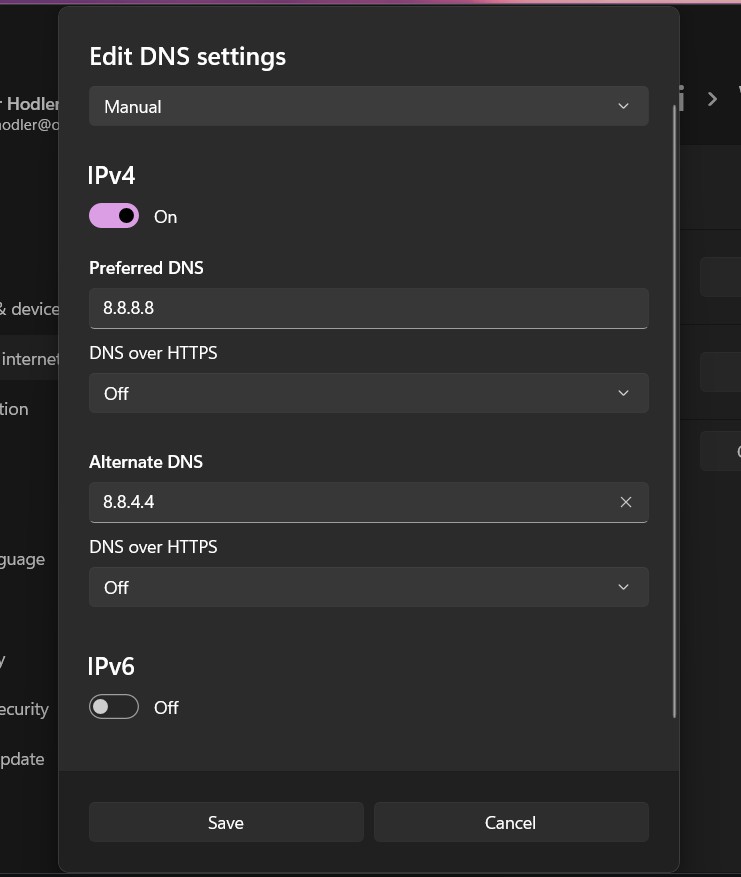
Fix 2 — Change DNS Server in Windows 11
One of the best solutions is switching to a public DNS.
⚙️ Recommended DNS Servers:
- Google DNS:
8.8.8.8and8.8.4.4 - Cloudflare DNS:
1.1.1.1and1.0.0.1
🛠️ Steps to Change DNS:
- Open Settings
- Go to Network & Internet
- Click Wi-Fi or Ethernet
- Click Hardware Properties
- Select DNS Server Assignment
- Click Edit
- Choose Manual
- Enter DNS values
✔️ Result:
- Faster browsing
- Stable connection
- Fixes DNS server not responding Windows 11 issue
Fix 3 — Reset Network Settings
If DNS still fails, reset the entire network stack.
🛠️ Steps:
- Open Settings
- Go to Network & Internet
- Click Advanced Network Settings
- Select Network Reset
- Click Reset Now
- Restart your PC
✔️ Result:
Restores default DNS behavior
Resets all adapters
Fixes hidden network conflicts
Fix 4 — Update or Reinstall Network Drivers
Outdated or corrupted network drivers are one of the hidden causes of the DNS server not responding Windows 11 error.
When drivers stop working correctly, your system may still show Wi-Fi as connected, but DNS requests fail in the background.
🛠️ How to Update Network Drivers
Step-by-step:
- Press Windows + X
- Click Device Manager
- Expand Network adapters
- Right-click your Wi-Fi or Ethernet driver
- Click Update driver
- Select Search automatically for drivers
If Updating Doesn’t Work (Reinstall Method)
- Go back to Device Manager
- Right-click your network adapter
- Click Uninstall device
- Restart your PC
Windows will automatically reinstall a fresh driver.
✔️ Result:
- Fixes corrupted driver issues
- Restores proper network communication
- Often resolves DNS server unavailable Windows 11 errors instantly
Fix 5 — Restart DNS Client Service
Windows uses a background service called DNS Client Service to handle domain name resolution.
If this service stops or glitches, DNS errors occur.
🛠️ Steps to Restart DNS Client:
- Press Windows + R
- Type:
services.msc - Press Enter
- Scroll down to DNS Client
- Right-click → Click Restart
✔️ If Restart is Greyed Out:
That’s normal on some systems. In that case, restart your PC instead.
✔️ Result:
- Refreshes DNS system processes
- Clears service-level glitches
- Fixes slow or failed domain resolution
Fix 6 — Disable IPv6 (Advanced Fix)
In some cases, IPv6 conflicts with DNS configuration and causes connection failure.
🛠️ Steps to Disable IPv6:
- Open Control Panel
- Go to Network and Internet
- Click Network and Sharing Center
- Click your active connection
- Click Properties
- Uncheck:
👉 Internet Protocol Version 6 (TCP/IPv6) - Click OK
✔️ Result:
- Removes conflicting protocol issues
- Forces system to use IPv4 DNS properly
- Helps fix stubborn internet not working Windows 11 cases
⚠️ Note:
Only disable IPv6 if other fixes don’t work. Most systems still run fine without it, but it’s optional.
Fix 7 — Check Firewall or Antivirus Blocking DNS
Sometimes security software blocks DNS requests.
This is common with:
- Third-party antivirus
- Overprotective firewall settings
- VPN apps
🛠️ What to do:
Step 1: Temporarily disable antivirus
- Turn off real-time protection
- Check if internet works
Step 2: Disable firewall temporarily
- Open Windows Security
- Go to Firewall & network protection
- Turn off firewall (test only)
✔️ If internet starts working:
Then your security software is the cause.
✔️ Result:
- Confirms blocking issue
- Helps isolate DNS conflict source
- Allows proper whitelist configuration later
Fix 8 — Reset Router DNS Settings
If Windows fixes don’t work, the issue may be in your router.
🛠️ Steps:
- Turn off router
- Unplug for 30 seconds
- Plug it back in
- Log into router admin panel
- Set DNS to:
- Google DNS: 8.8.8.8
- Cloudflare DNS: 1.1.1.1
✔️ Result:
- Fixes ISP-level DNS issues
- Improves stability for all devices connected
- Solves persistent DNS server unavailable Windows 11 errors
Fix 9 — Reset Winsock and TCP/IP Stack (Advanced Fix)
If standard fixes don’t resolve the issue, Windows network components may be corrupted. One of the most effective advanced solutions is resetting the Winsock catalog and TCP/IP stack.
This method repairs deep-level network communication issues that often trigger the DNS server not responding Windows 11 error.
🛠️ Steps to Reset Winsock:
Open Command Prompt as Administrator and run:
netsh winsock reset🛠️ Then reset TCP/IP:
netsh int ip reset🔄 Final Step:
Restart your PC afterward.
✔️ Result:
- Repairs broken network stack
- Restores DNS communication pathways
- Fixes persistent internet not working Windows 11 issues
📚 External DoFollow References (Authority Sources)
To understand how Windows networking works, you can refer to:
- Microsoft DNS Overview
https://learn.microsoft.com/en-us/windows-server/networking/dns/dns-top - Microsoft Netsh Command Documentation
https://learn.microsoft.com/en-us/windows-server/networking/technologies/netsh/netsh-contexts - Cloudflare DNS Guide (why public DNS is faster)
https://www.cloudflare.com/learning/dns/what-is-dns/
To strengthen your troubleshooting process, you can also explore related guides on FixTechIssues:
Quick Fix Checklist (Fast Troubleshooting Summary)
If you are in a hurry, follow this order:
⚡ Step-by-step quick fix:
- Restart router and PC
- Run
ipconfig /flushdns - Change DNS to Google or Cloudflare
- Reset network settings
- Update network drivers
- Run Winsock reset
✔️ This sequence fixes:
- 90% of DNS server not responding issues
- Most internet not working Windows 11 errors
- Temporary and permanent DNS failures
When You Should Contact Your Internet Provider
If the issue still persists after all fixes, the problem may be outside your PC.
Contact your ISP if:
- Internet is down on all devices
- Router keeps losing DNS repeatedly
- You cannot access router admin page
- DNS fails even after reset
✔️ Possible ISP issues:
- DNS outage
- Network congestion
- Faulty line connection
- Regional internet disruption
📚 External Support References:
- Internet Society — DNS Explained
https://www.internetsociety.org/tutorials/dns/ - Google Public DNS Guide
https://developers.google.com/speed/public-dns/docs/using
Final Expert Conclusion
The DNS server not responding Windows 11 error may look serious, but in reality, it is usually caused by simple configuration or network issues.
In most cases, you can fix it by:
- Flushing DNS cache
- Changing DNS servers
- Resetting network settings
- Updating drivers
Only a small percentage of cases require ISP support.
🚀 Key takeaway:
Your internet is not broken — your system just cannot translate domain names correctly due to DNS failure.
FAQ
❓ Why does my DNS server keep not responding Windows 11?
This happens due to incorrect DNS settings, outdated drivers, or router issues causing failed domain resolution.
❓ How do I fix DNS server not responding quickly?
Restart your router to Fix DNS server not responding, flush DNS cache, or switch to Google DNS (8.8.8.8). These are the fastest solutions.
❓ Is DNS server not responding a virus?
No, it is not a virus. It is a network configuration or connectivity issue.
❓ What is the best DNS for Windows 11?
- Google DNS: 8.8.8.8
- Cloudflare DNS: 1.1.1.1
These are fast and reliable.




3 comments